Vision Miner Wiki

Static IP Setup

Static IP Setup

A static IP address allows your 22 IDEX printer to maintain the same IP address on your network, making it easier to connect consistently. This manual covers how to assign a static IP address to your printer.


Important: Preferred Method

Warning: ⚠️ We strongly recommend assigning static IP through your router or network administrator, NOT through the machine.

Why router-based configuration is better:

  • ✅ No risk of IP conflicts
  • ✅ Centralized network management
  • ✅ Router controls IP assignments
  • ✅ Prevents connection issues
  • ✅ Easier to troubleshoot

Only use the machine's built-in static IP assignment if:

  • You cannot access your router settings
  • Your network administrator is unavailable
  • You have no other option available

Understanding IP Assignment Methods

Configure your router to always assign the same IP address to your printer based on its MAC address (DHCP reservation).

Advantages:

  • Router manages all IP addresses
  • No conflicts with other devices
  • Network administrator maintains control
  • Easy to change if needed
  • Printer remains in DHCP mode (safer)

How to set this up:

  1. Log into your router's admin interface
  2. Find DHCP reservation or static DHCP settings
  3. Add a reservation for your printer's MAC address
  4. Assign the desired IP address
  5. Save settings and restart printer

Info: Note: Consult your router's manual or network administrator for specific steps. This varies by router model.

Method 2: Machine-Based Static IP (Last Resort)

Configure the printer itself to request a specific IP address.

Disadvantages:

  • ⚠️ Can cause IP conflicts if router assigns same IP to another device
  • ⚠️ If router doesn't accept the request, printer won't connect
  • ⚠️ Difficult to recover if configuration fails
  • ⚠️ Requires network knowledge to troubleshoot

Only use this method if router configuration is absolutely not possible.


Risks and Warnings

IP Address Conflicts

What can go wrong:

  • Your printer requests IP address 192.168.1.100
  • Your router's DHCP server assigns 192.168.1.100 to another device
  • Result: IP conflict - printer cannot connect to network

Signs of IP conflict:

  • Cannot access printer web interface
  • Network shows printer as offline
  • Static IP test fails
  • Other devices lose network connection

Router Rejection

What can go wrong:

  • Your printer requests a specific IP address
  • Your router rejects the request (due to settings or restrictions)
  • Result: Printer fails to connect to network at all

This is why router-based assignment is safer - the router always accepts its own IP assignments.


Using Machine-Based Static IP Assignment

Warning: ⚠️ Warning: Only proceed if you cannot configure static IP through your router. Improper configuration may prevent network access.

Prerequisites

Before starting:

  • ✅ Printer is connected to network (Ethernet or WiFi)
  • ✅ You know your network's IP range (e.g., 192.168.1.x)
  • ✅ You know which IP addresses are available
  • ✅ You understand your router's DHCP range
  • ✅ You have physical access to printer (in case of failure)

Step 1: Access the Static IP Macro

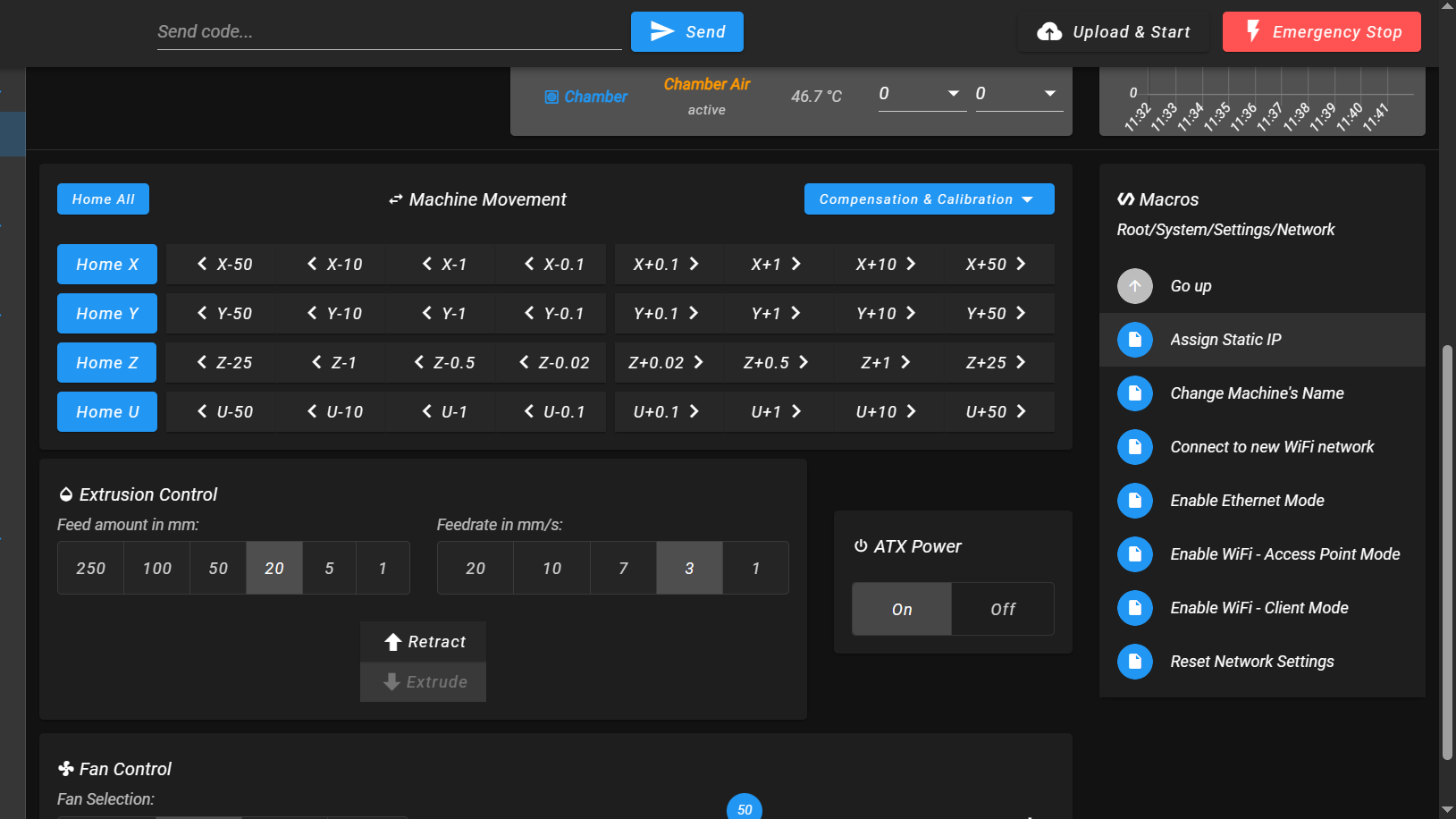
  1. Open Web Interface:

    • Connect to your printer's web interface
    • Navigate to Macros > System > Settings > Network
  2. Run the Macro:

    • Click Assign Static IP

Step 2: Review Current Connection

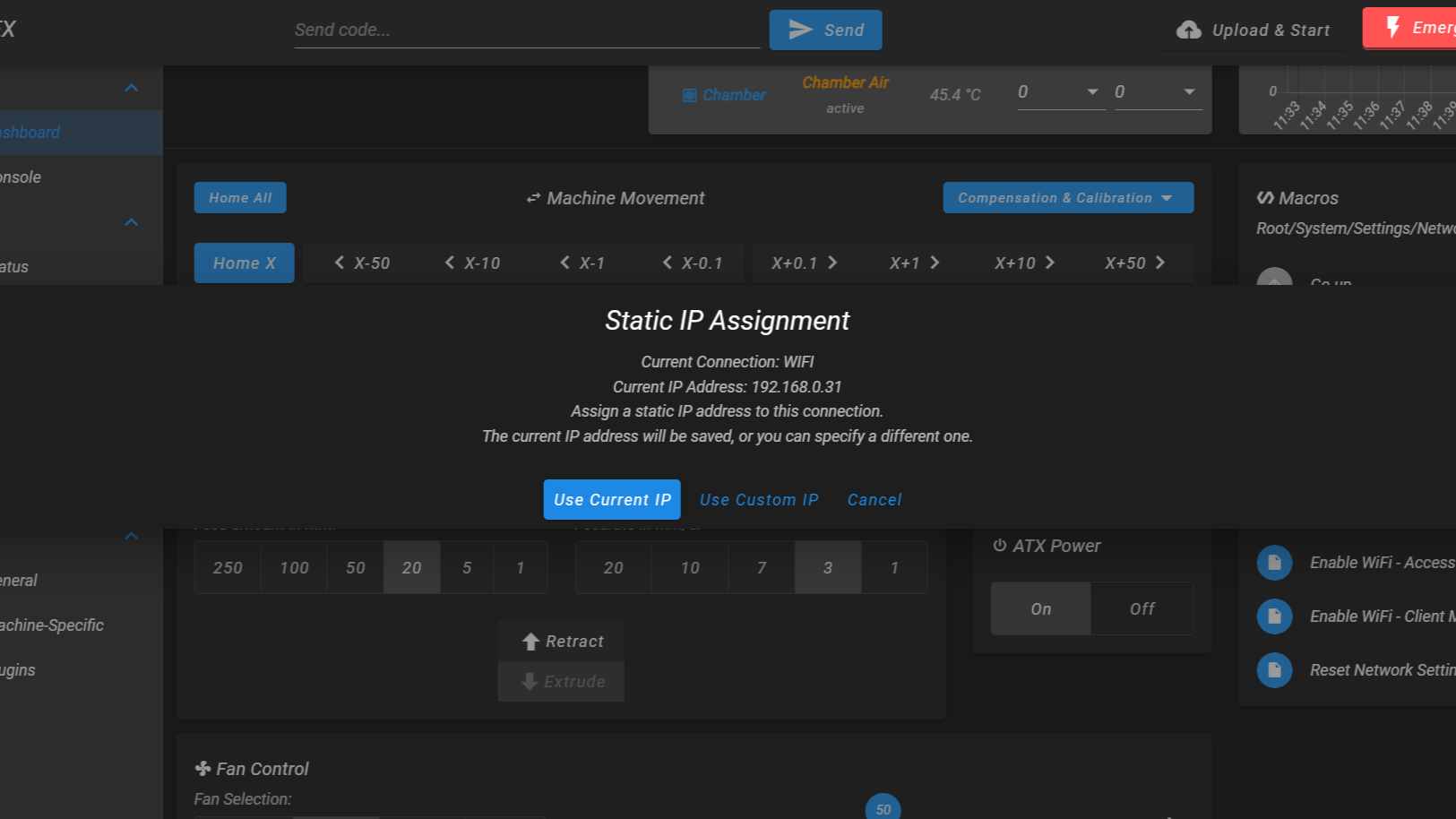
The macro will display:

  • Current connection type (Ethernet or WiFi)
  • Current IP address
  • Option to use current IP or specify custom IP

Available Options:

  • Use Current IP - Assigns your current IP as static (safer)
  • Use Custom IP - Specify a different IP address (risky)
  • Cancel - Exit without making changes

Tip: Recommendation: Choose "Use Current IP" if your current IP address works well. This is less likely to cause conflicts.

Step 3: Custom IP Address (If Selected)

If you chose "Use Custom IP":

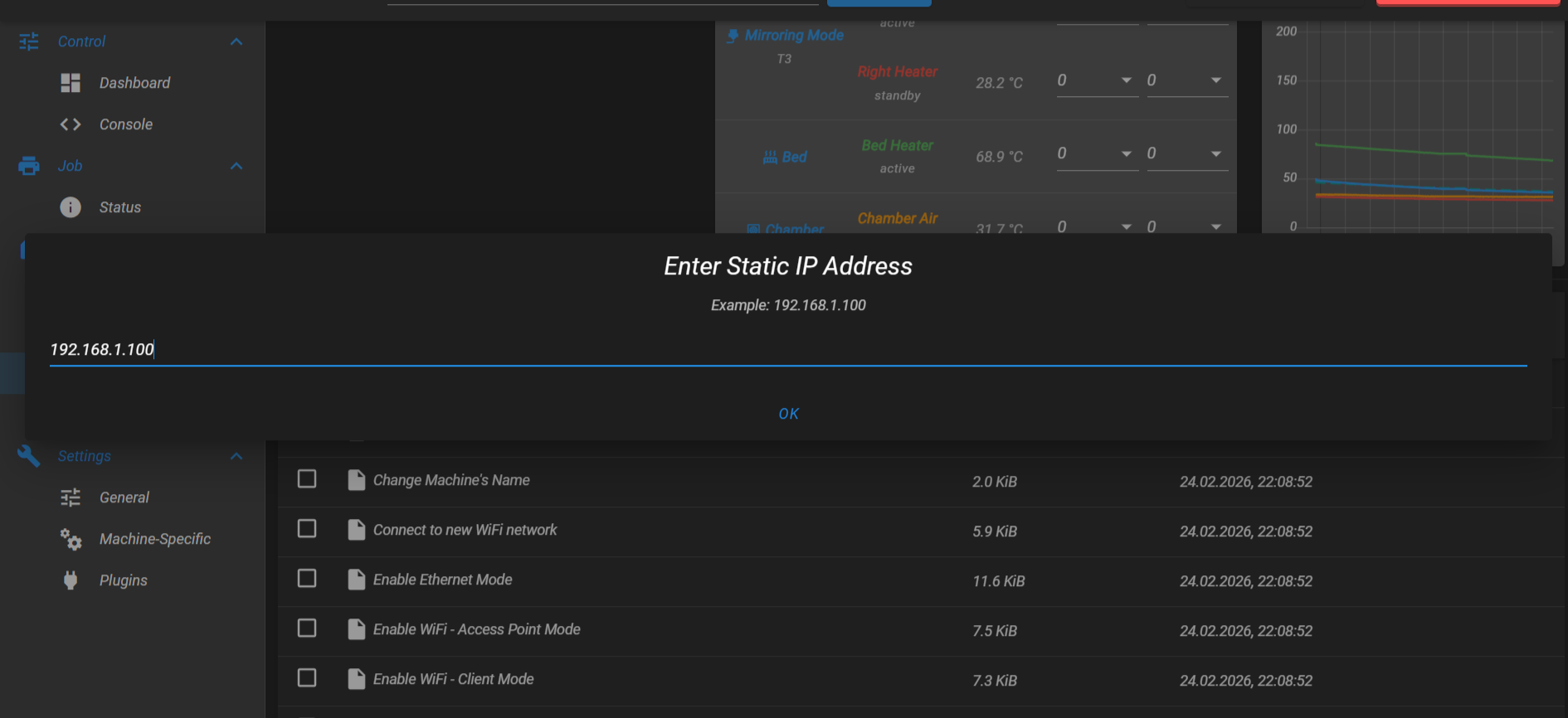
  1. Enter IP Address:

    • Format: 192.168.1.100 (example)
    • Must be valid for your network
    • Must not be in use by another device
    • Must be outside router's DHCP range (if possible)
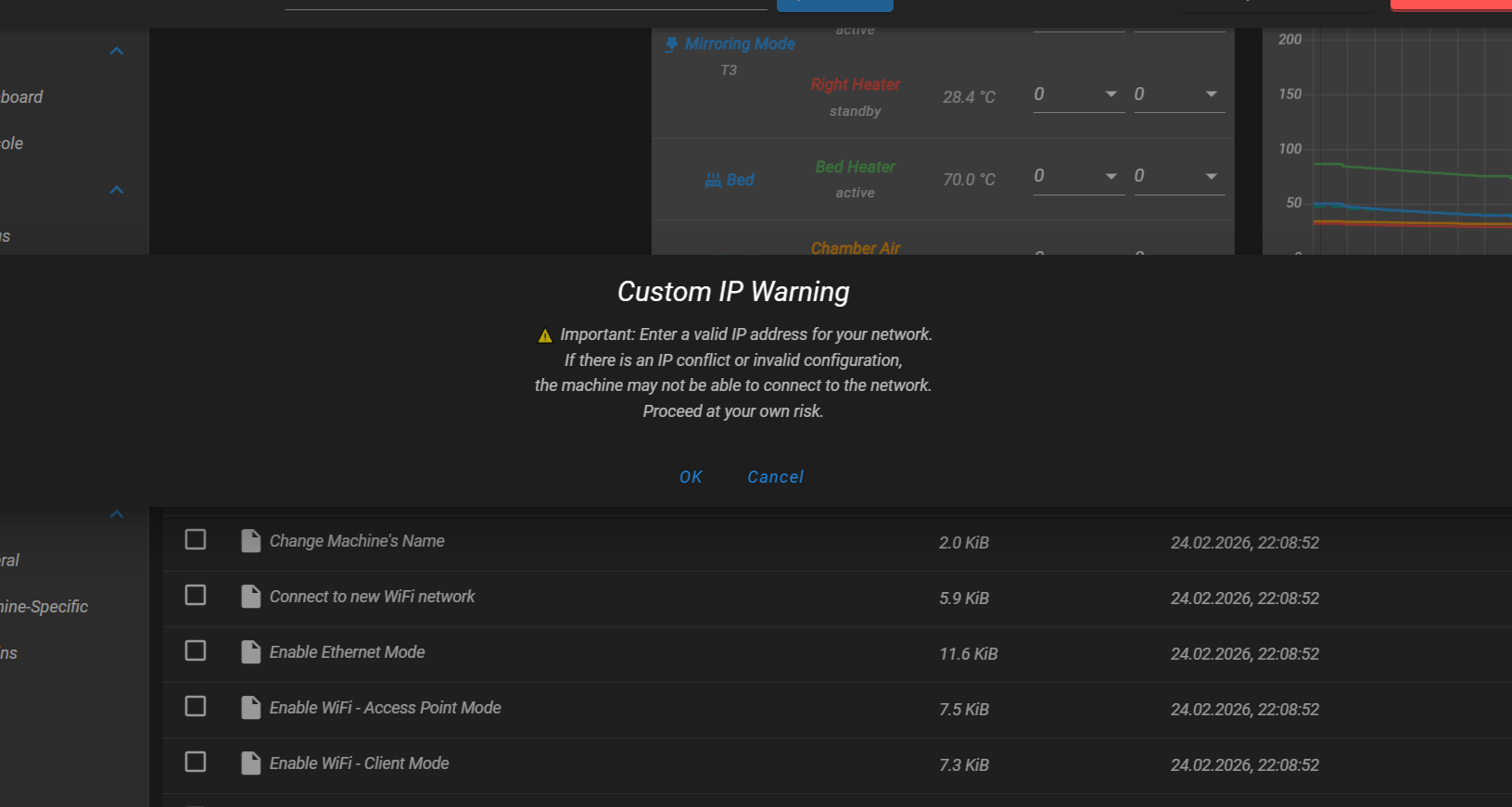
  2. Warning Displayed:

    • The macro will warn about potential conflicts
    • Proceed at your own risk

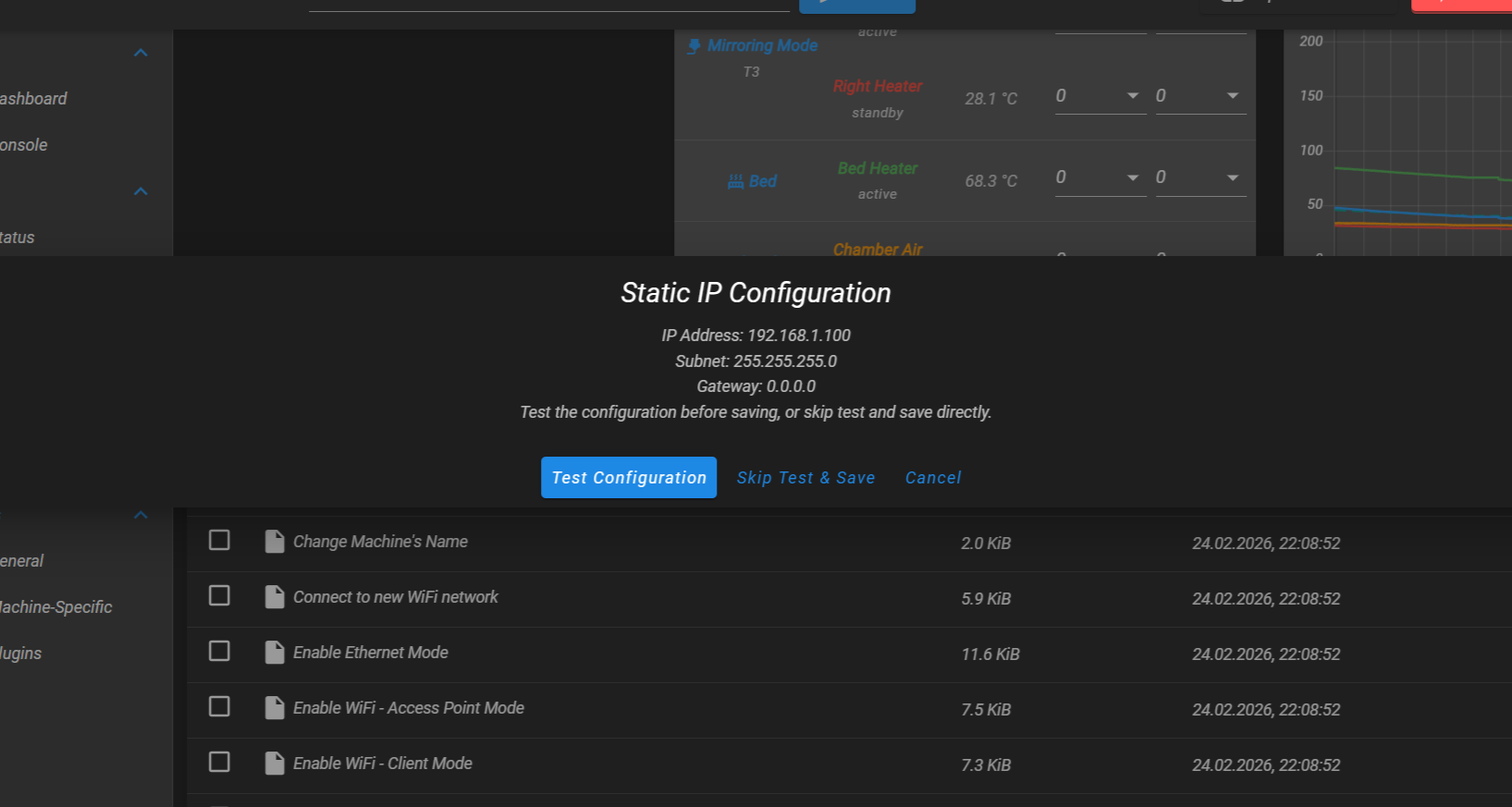
Step 4: Test or Skip Test

The macro offers two options:

Option 1: Test Configuration (Recommended)

  • Tests the static IP before saving permanently
  • If test fails, restores original connection automatically
  • Safer option - you can verify it works

Option 2: Skip Test & Save

  • Saves static IP without testing
  • Takes effect after restart
  • Risky - if it doesn't work, you'll need to reset network settings

Warning: Important: Always choose "Test Configuration" unless you're certain the IP address is correct and available.

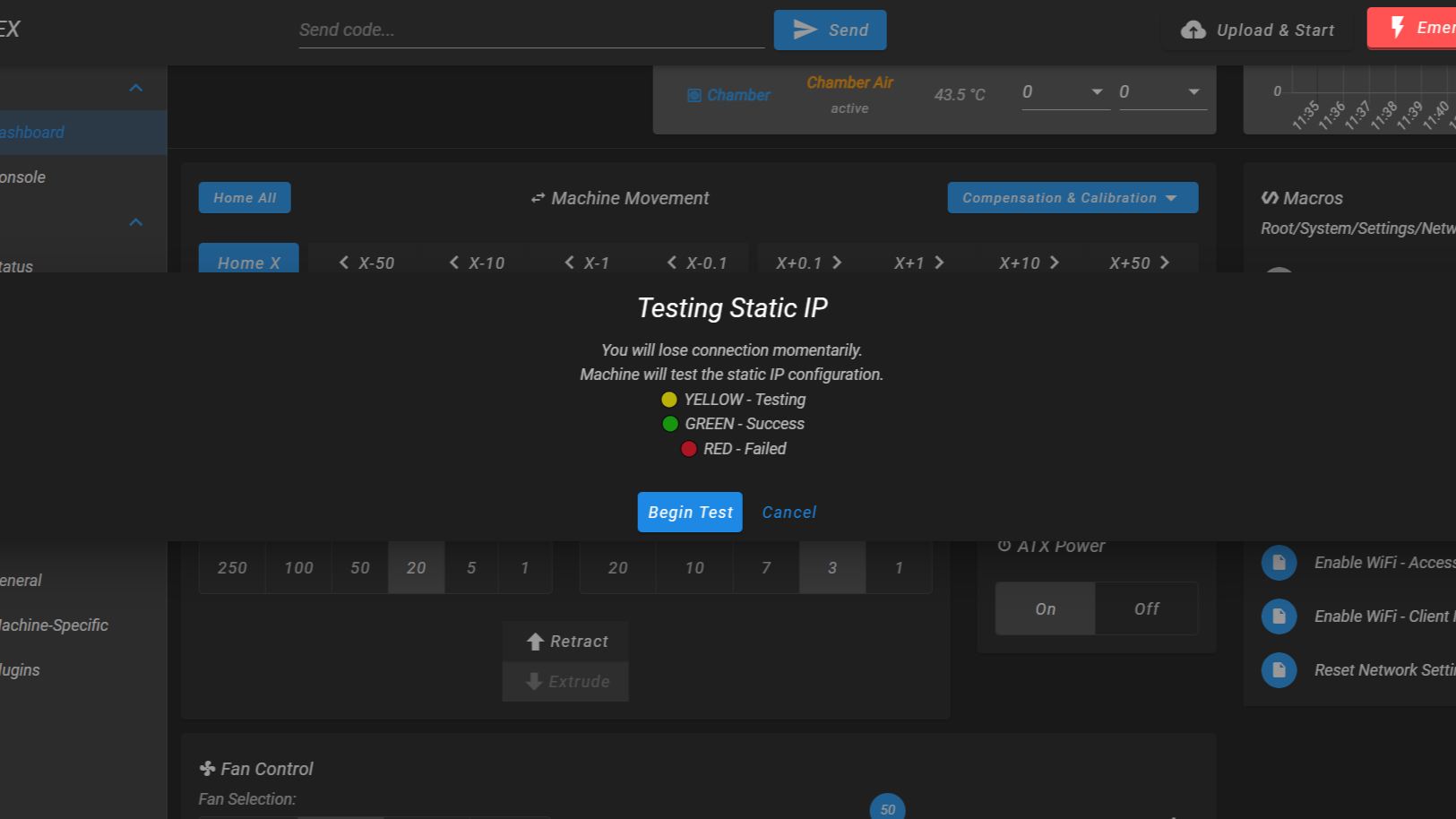
Step 5: Testing Process

If you chose to test:

  1. Connection Loss Warning:

    • You will lose connection momentarily
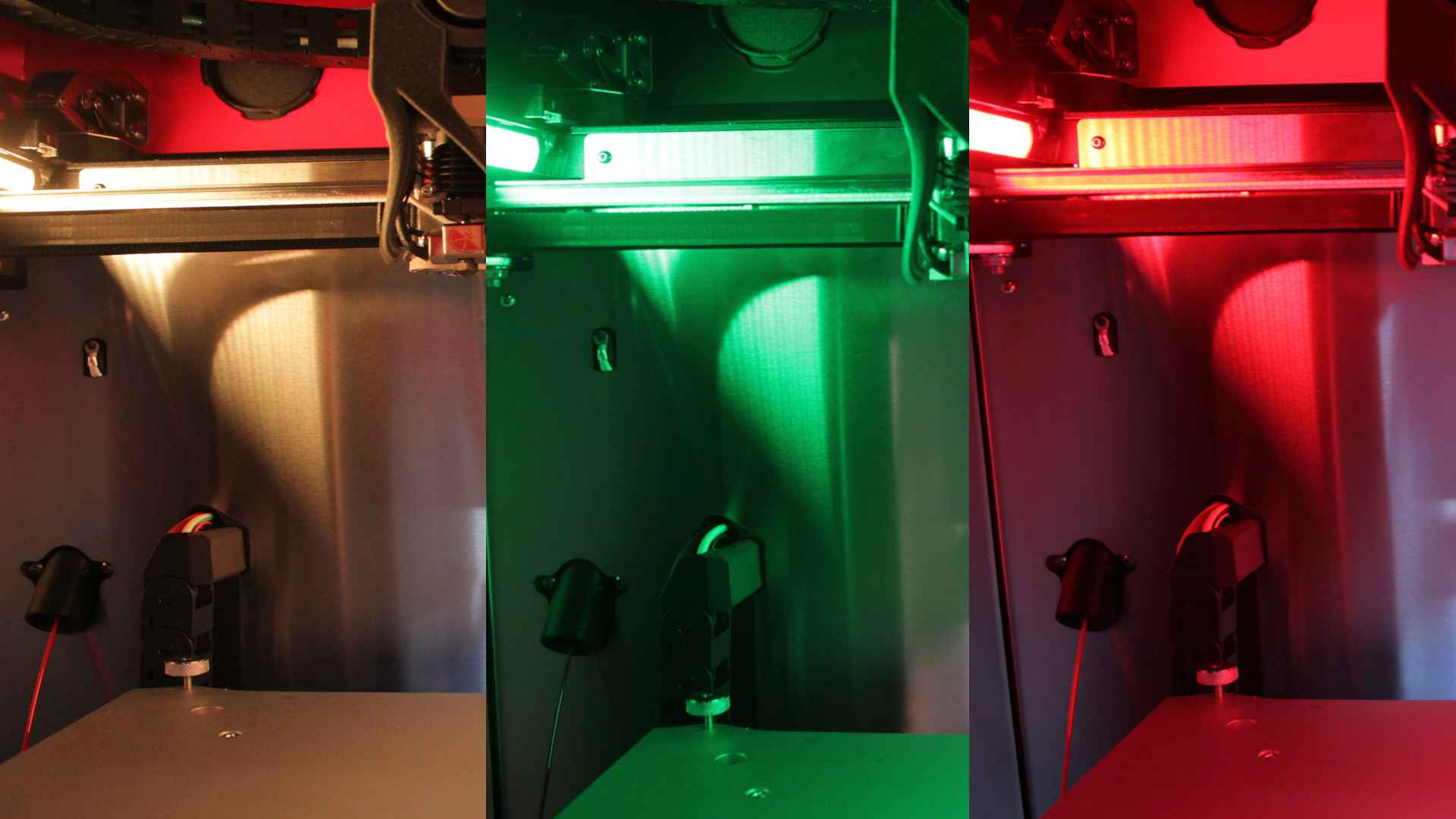
    • LED will turn yellow (testing)
    • Wait for test to complete
  2. LED Status Indicators:

    • 🟡 Yellow - Testing in progress
    • 🟢 Green - Test successful, static IP works
    • 🔴 Red - Test failed, restored original connection
  3. Test Results:

If Successful (Green LED):

  • Configuration is saved permanently
  • Static IP will remain active after restart
  • You can reconnect using the new static IP

If Failed (Red LED):

  • Original connection is restored automatically
  • Static IP was NOT saved
  • Possible reasons:
    • Router rejected the IP request
    • IP conflict with another device
    • Invalid IP address for your network
    • Router's DHCP server doesn't allow static assignments

Step 6: WiFi Additional Step

For WiFi connections, you'll need to:

  1. Enter your WiFi password when prompted
  2. Network will be reconfigured with static IP
  3. Test proceeds as normal

What If Static IP Assignment Fails?

Immediate Recovery

If the test fails:

  • ✅ Original connection is restored automatically
  • ✅ You can still access the printer
  • ✅ No permanent damage done

If You Skipped Test and Now Can't Connect

Symptoms:

  • Cannot access printer web interface
  • Printer appears offline
  • Network troubleshooting shows connection issues

Solution: Reset Network Settings

  1. Physical Access Required:

    • Go to the printer's touchscreen (if available)
    • OR connect via USB/serial console
  2. Via Web Interface (if still accessible):

    • Navigate to Macros > System > Settings > Network
    • Run Reset Network Settings
  3. What This Does:

    • ⚠️ Erases ALL network settings
    • ⚠️ Removes ALL WiFi networks
    • ⚠️ Removes ALL Ethernet configurations
    • ⚠️ Resets to Access Point mode
    • You will lose connection
  4. After Reset:

    • Printer will start in Access Point mode
    • Default network name: (your machine's AP name)
    • Default password: 1234567890
    • Reconnect and reconfigure network from scratch

Warning: Critical: Reset Network Settings is your recovery tool if static IP configuration prevents network access. It erases everything and starts fresh.


Troubleshooting

Cannot Access Printer After Static IP Assignment

Problem: Assigned static IP, now cannot connect to printer.

Solution:

  1. Wait 2-3 minutes for network to stabilize
  2. Try accessing the static IP address directly in browser
  3. Check if router assigned a different IP (look in router's DHCP leases)
  4. If still no access, run Reset Network Settings macro
  5. Reconfigure network with DHCP (no static IP)

Router Keeps Assigning Different IP

Problem: Router ignores static IP request and assigns different address.

Why this happens:

  • Router's DHCP server has priority
  • Router settings don't allow client-requested IPs
  • IP address is within router's DHCP pool

Solution:

  • This confirms you MUST configure static IP through router
  • Use DHCP reservation on router instead
  • Contact network administrator

IP Conflict Messages

Problem: Network shows IP address conflict warnings.

Why this happens:

  • Another device is using the same IP address
  • Router assigned the IP to another device
  • Two devices are fighting for the same address

Solution:

  1. Run Reset Network Settings to clear static IP
  2. Choose a different IP address outside DHCP range
  3. OR configure static IP through router (prevents conflicts)

WiFi Static IP Fails, Ethernet Static IP Works

Problem: Static IP works on Ethernet but fails on WiFi.

Why this happens:

  • Some routers handle WiFi and Ethernet DHCP differently
  • WiFi may have stricter IP assignment policies
  • Router may require MAC address filtering for WiFi

Solution:

  • Use router-based DHCP reservation for WiFi
  • Check router's WiFi settings for IP restrictions
  • Verify MAC address is allowed on WiFi network

Best Practices

Choosing an IP Address

If you must assign static IP through the machine:

  1. Use Current IP First:

    • If your current dynamic IP works well, make it static
    • Less likely to cause conflicts
  2. Choose Outside DHCP Range:

    • Find your router's DHCP range (e.g., 192.168.1.100-200)
    • Choose an IP outside this range (e.g., 192.168.1.50)
    • Prevents router from assigning same IP to another device
  3. Document Your Choice:

    • Write down the assigned static IP
    • Note it on the printer or in your records
    • Makes troubleshooting easier

Network Documentation

Keep a record of:

  • Printer's MAC address
  • Assigned static IP address
  • Network subnet (usually 255.255.255.0)
  • Gateway address (usually your router's IP)
  • Date of configuration

Regular Testing

After assigning static IP:

  • Test connectivity immediately
  • Restart printer to verify IP persists
  • Check after router restarts
  • Verify other devices aren't affected

Recovery Procedure

If static IP configuration causes complete network loss:

Method 1: Reset Network Settings via Macro

  1. If you still have ANY network access:

    • Connect via web interface
    • Run Macros > System > Settings > Network > Reset Network Settings
    • Confirm erasure of all settings
    • Printer will reset to Access Point mode
  2. After reset completes:

    • Connect to printer's Access Point
    • Reconfigure network connection
    • Use DHCP (no static IP) for safety

Method 2: Manual Reset (If No Network Access)

If you cannot access the printer at all:

  1. Contact Vision Miner support for manual reset procedure
  2. May require SD card access or serial connection
  3. Support can guide you through recovery

Summary

Key Points to Remember:

  1. Always prefer router-based static IP assignment

    • Safer, more reliable, prevents conflicts
    • Contact network administrator or consult router manual
  2. Machine-based static IP is last resort only

    • Use when router configuration is impossible
    • Always test before saving permanently
    • Be prepared to reset network settings if needed
  3. IP conflicts are the main risk

    • Can prevent all network access
    • Requires network reset to recover
    • Avoidable by using router-based assignment
  4. Reset Network Settings is your safety net

    • Erases all network configuration
    • Returns printer to Access Point mode
    • Allows complete reconfiguration

Recommended Workflow:

  1. Try router-based static IP first (DHCP reservation)
  2. If impossible, use machine's "Use Current IP" option
  3. Always choose "Test Configuration" option
  4. If test fails, use router-based method instead
  5. Keep Reset Network Settings macro available for recovery

When to Contact Support

Contact Vision Miner support if:

  • Static IP causes network access loss and reset doesn't help
  • Router-based configuration is unclear
  • Network administrator needs technical specifications
  • IP conflicts persist after reset
  • Need guidance on network recovery

Contact Vision Miner Support

Assign Static Ip
Assign Static Ip

On this page

Your feedback makes it better for everyone.