Power Button: Operation Principle
Power button on the 22 IDEX V4 holds the mainboard in reset and cuts only the 24V rail — motors, heaters and fans stop while the 5V touchscreen stays lit.
This article explains how the power system works on the 22IDEX V4 and what the power button actually does. If you've pressed the power button and noticed the touchscreen stays lit – that's normal behavior, not a malfunction. Read on to understand why.
Before you begin - safety and risk
Read the Safety - Before You Begin article to understand the hazards involved in working on the Vision Miner 22IDEX V4 - including electrical, thermal, mechanical, and chemical risks. All procedures in this wiki are provided as recommendations only. By choosing to follow any procedure, you do so at your own risk.
The 24V power system drives heaters and motors that can cause burns or injury. If you suspect a malfunction – press the power button first, then diagnose the problem.
The power button does not disconnect the printer from mains power. To fully de-energize the printer, unplug it from the wall outlet.
How the Power System Works
The 22IDEX V4 has two separate power supplies inside the enclosure:
| Power Supply | Voltage | State | What it powers |
|---|---|---|---|
| Low-voltage PSU | 5V | Always on (connected directly to mains) | Mainboard processor, touchscreen (PanelDue) |
| High-voltage PSU | 24V | Controlled by the mainboard via relay | Motors, heaters, fans, LEDs |
The 5V PSU starts the moment the printer is plugged in. It provides power to the Duet mainboard's processor and to the PanelDue touchscreen. Both power supplies have a fuse on the AC (mains) side. If a short circuit or overcurrent occurs, the fuse will break the circuit and cut off all power. The 24V PSU does not turn on by itself – it is activated by the mainboard through a relay.
Power-On Sequence
- The 5V PSU supplies power to the mainboard. The processor starts.
- The firmware sends a signal to close the relay on the 24V PSU.
- The 24V PSU turns on. Motors, heaters, fans, and all other high-power components become operational.
- The printer is ready to use.
The key point: the 5V and 24V supplies are independent. The 5V PSU is always on as long as the printer is plugged in. The 24V PSU only runs when the mainboard tells it to.
How the Power Button Works
The power button is a push-to-lock button on the front panel of the printer. It is connected to the mainboard's reset circuit.
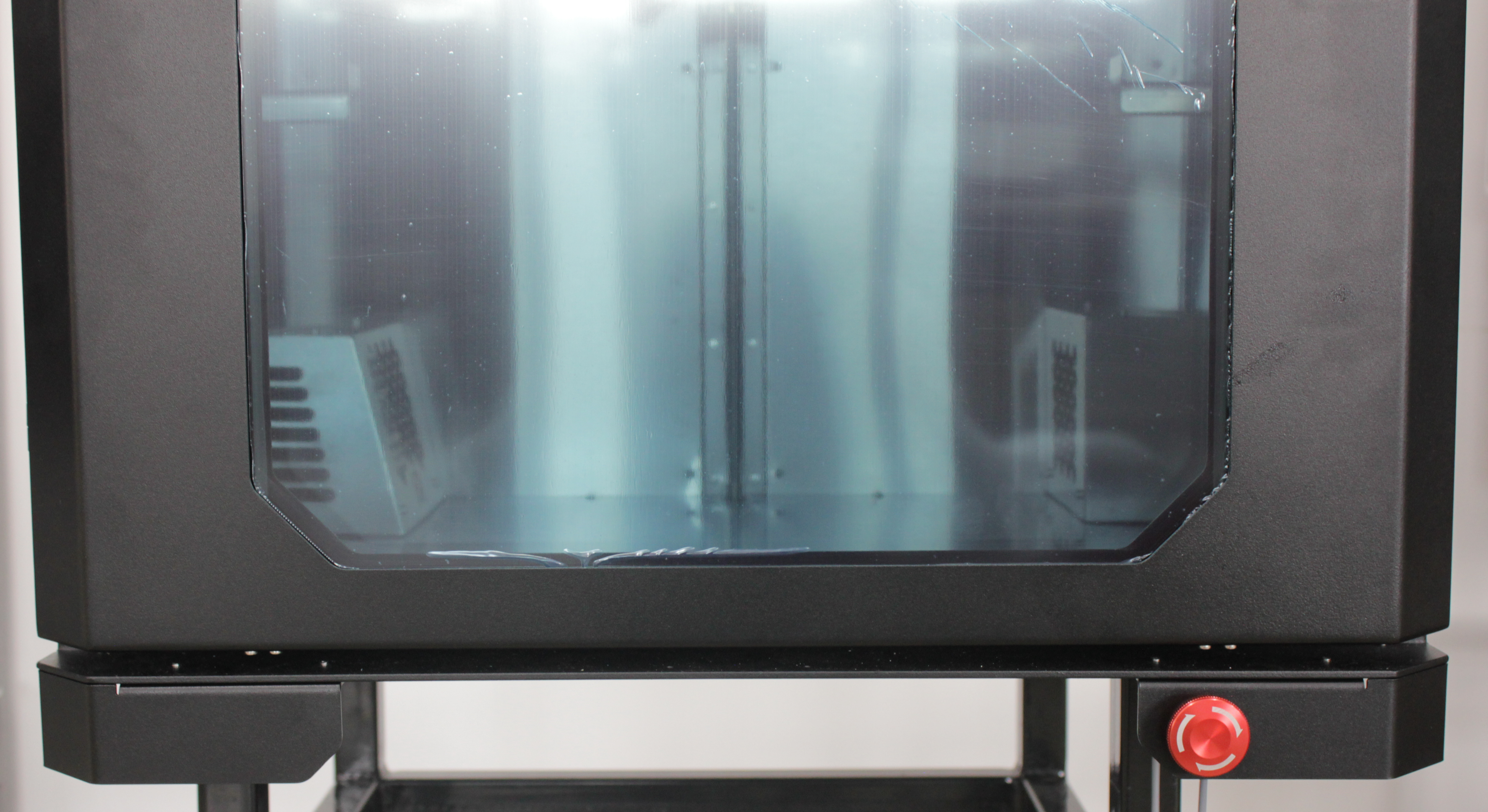
When you press the power button:
- The button locks in the pressed position.
- The mainboard processor is held in a reset state – firmware stops running.
- The PS_ON signal drops – the 24V PSU relay opens.
- The 24V PSU shuts off. All motors, heaters, and fans stop immediately.
Everything that could cause damage – movement, heating, spinning fans – is stopped. But the 5V PSU is completely unaffected. It stays connected to mains and continues to supply power to the mainboard's low-voltage circuits and the touchscreen.
The touchscreen staying on after pressing the power button is normal. It does not indicate a fault. The screen is powered by the 5V PSU, which is always active while the printer is plugged in. However, the screen only receives power – it does not receive any data from the mainboard because the processor is held in reset. The screen may show a communication error or the last known state, but it is not executing any commands.
Turning the Printer Back On
- Twist the power button counter-clockwise to release it from the locked position.
- The button pops back out and the mainboard exits the reset state.
- The mainboard boots up and sends the signal to activate the 24V PSU.
- After a few seconds the printer is fully operational again.
After releasing the power button, wait for the mainboard to complete its boot sequence (a few seconds) before starting any operations. The status LED on the mainboard will blink steadily when the firmware is running.
Why Does the Screen Stay On?
The touchscreen (PanelDue) is powered from the 5V rail. The power button resets the mainboard processor – it does not disconnect the 5V PSU from mains power.
Here is what happens to each part of the system when the power button is pressed:
| Component | Power source | State after pressing the button |
|---|---|---|
| Touchscreen (PanelDue) | 5V PSU | Stays on but receives no data – normal |
| Motors | 24V PSU | Off |
| Heaters (nozzle, bed, chamber) | 24V PSU | Off |
| Fans | 24V PSU | Off |
| LEDs | 24V PSU | Off |
| Mainboard processor | 5V PSU | Held in reset (not running) |
To fully power off the printer including the screen, unplug the printer from the wall outlet or switch off the power strip.
FAQ
Support
If you could not find an answer here, reach out to our support team.