Minimal Layer Time Settings
Set minimal layer time in PrusaSlicer for stronger layer bonding — cooling thresholds, min print speed, sequential printing and when to keep fans off.
This guide explains the "Minimal Layer Time" setting in PrusaSlicer and its critical role in achieving optimal interlayer adhesion and mechanical strength, particularly when printing with high-temperature engineering materials on the Vision Miner 22IDEX V4. Properly configuring this setting helps ensure each new layer fuses effectively with the previous one, leading to parts with near-isotropic strength.
The primary goal of adjusting Minimal Layer Time is to maximize the temperature of the previously printed layer just before the next layer is extruded onto it. For polymers, especially high-temperature ones, strong interlayer adhesion relies on sufficient thermal energy to allow polymer chains across the layer interface to diffuse and entangle. If a layer cools too much before the next is applied, adhesion is compromised, resulting in weaker parts, particularly along the Z-axis (build direction).
This guide details how to locate and adjust the Minimal Layer Time and related cooling settings in PrusaSlicer. The benefit is achieving parts with significantly improved Z-strength, potentially exceeding 80% of the XY-strength, mimicking the near-isotropic properties of injection-molded parts. Prerequisites include basic familiarity with PrusaSlicer and understanding the thermal properties of the filament being used.
High temperatures can cause severe burns
Read the Safety - Before You Begin article to understand the hazards involved in working on the Vision Miner 22IDEX V4 - including electrical, thermal, mechanical, and chemical risks. All procedures in this wiki are provided as recommendations only. By choosing to follow any procedure, you do so at your own risk.
Understanding Layer Time and Its Impact
What is glass transition temperature (Tg)?
Tg is the temperature at which an amorphous solid, such as a polymer or glass, changes from a glassy state (hard and brittle) into a highly elastic one (soft and rubbery). It is not a melting point. Below Tg the polymer chains are locked in place, above it they become mobile enough to diffuse into the layer beneath and weld to it. That is why layer time matters: it decides whether the previous layer is still above Tg when the next one lands on it.
When printing, each layer requires a certain amount of time to complete. This "layer time" dictates how long the previously deposited layer sits exposed to the chamber environment before the next layer is added.
- Material Science Perspective: For optimal layer bonding, the surface of the previous layer should ideally be at or near its glass transition temperature (Tg) or even slightly above when the new molten material is deposited. This promotes polymer chain mobility and inter-diffusion across the layer boundary, creating a strong weld.
- Too Long Layer Time: If a layer takes too long (e.g., printing multiple disparate parts simultaneously across a large build plate), the previous layer cools down significantly. This reduces chain mobility, hinders diffusion, and results in poor interlayer adhesion, leading to anisotropic weakness (parts are much weaker in Z than XY).
- Too Short Layer Time: Conversely, if layers are printed too quickly without sufficient cooling (especially on small cross-sectional areas), heat can accumulate excessively. The part may not solidify adequately, leading to deformation, sagging, or even melting under the heat of subsequent layers.
Therefore, the goal is to find a balance: keep layer times short enough to maintain high surface temperature for bonding, but long enough to allow the layer to solidify sufficiently to support the next. Printing parts sequentially (one at a time) inherently minimizes layer time compared to printing all parts layer-by-layer concurrently.
Adjusting the Minimal Layer Time Settings
These critical settings are found within the filament-specific configuration:
- Open PrusaSlicer.
- Navigate to the Filament Settings tab.
- Select the filament profile you wish to configure from the dropdown menu.
- In the left-hand panel, click on Cooling.
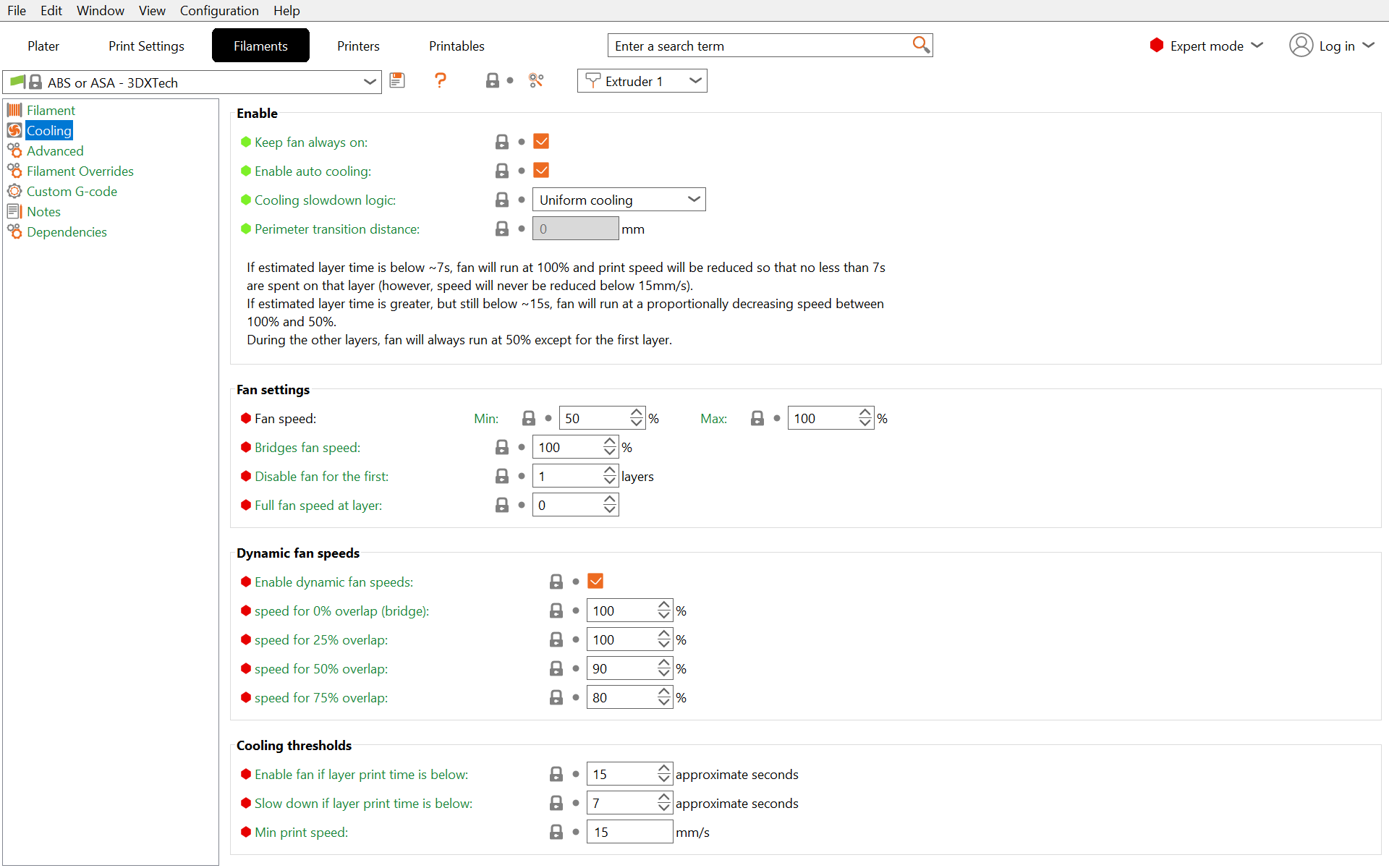
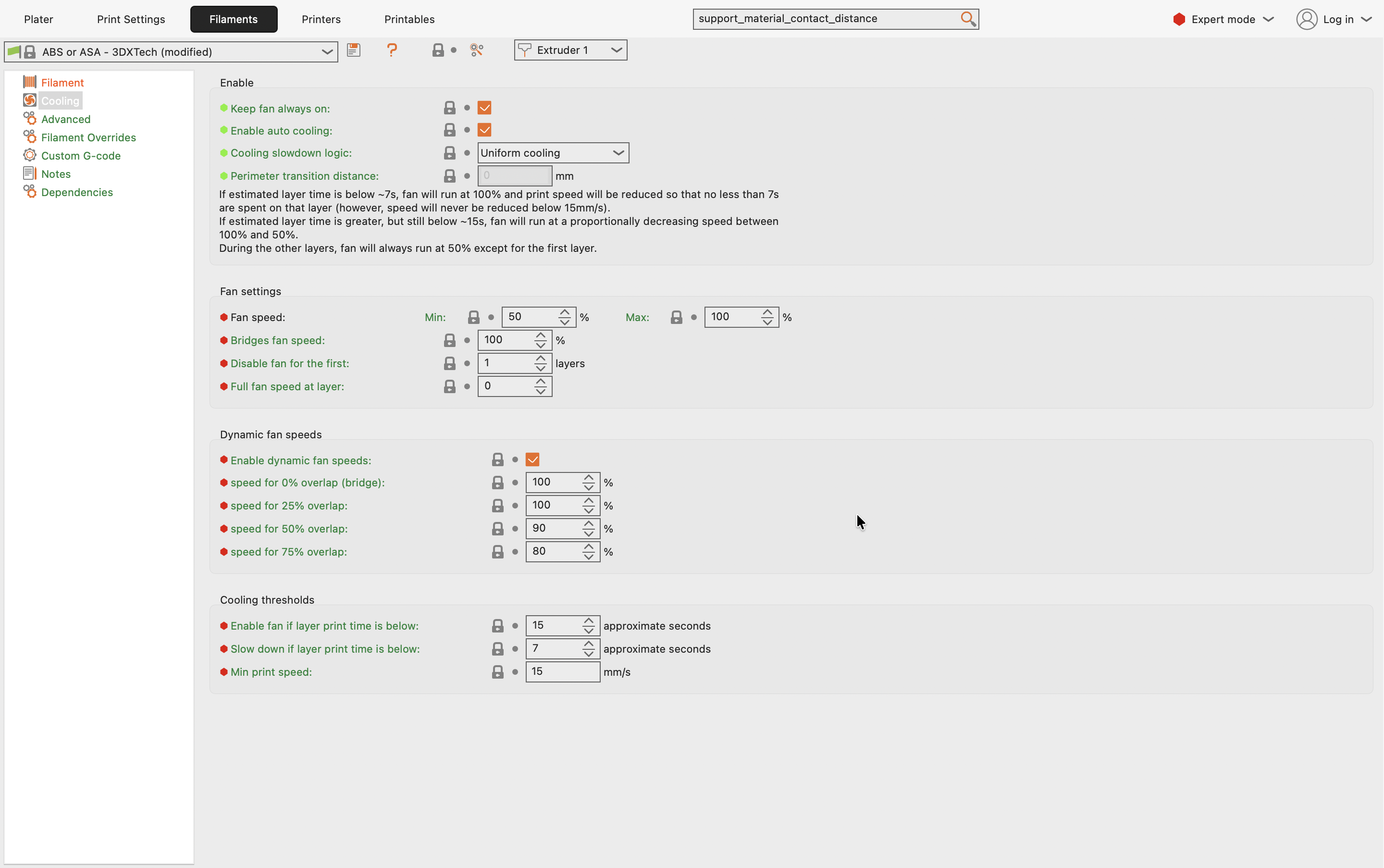
- Identify the key parameters under the "Cooling Thresholds" section:
- Slow down if layer print time is below: This is the core "Minimal Layer Time" setting (in seconds). If a layer is calculated to print faster than this value, the printer will reduce its speed.
- Min print speed: This sets the lowest speed the printer will slow down to when enforcing the minimal layer time.
- Enable fan if layer print time is below: Controls automatic part cooling fan activation for very fast layers (less relevant for high-temp materials where the fan is often detrimental to strength).
Configuring Minimal Layer Time
The ideal Minimal Layer Time value is highly material-dependent:
- Set the Target: In the "Slow down if layer print time is below" field, enter your target minimum time in seconds.
- Starting Point: The standard Vision Miner slicing profiles contain appropriate Minimal Layer Time values for various materials. These values serve as excellent reference points. Feel free to use them as a starting point and adjust accordingly based on your specific geometry and print observations.
- Set the Speed Floor: Define the "Min print speed" (e.g.,
15mm/s). This prevents the printer from slowing down too much. Excessively slow speeds can sometimes be counterproductive, potentially causing surface defects or melting due to prolonged contact and heat conduction from the hot nozzle to the part. - Consider Sequential Printing: For maximum strength, especially with high-temp materials, use PrusaSlicer's "Print Settings" -> "Output options" -> "Complete individual objects" feature. This prints each object fully before moving to the next, inherently keeping layer times short and consistent for each part.
Ensure adequate clearance for sequential printing
When printing sequentially, ensure adequate clearance between objects on the build plate to prevent collisions with the print head assembly. PrusaSlicer helps visualize this clearance.
Seeing the Setting Take Effect
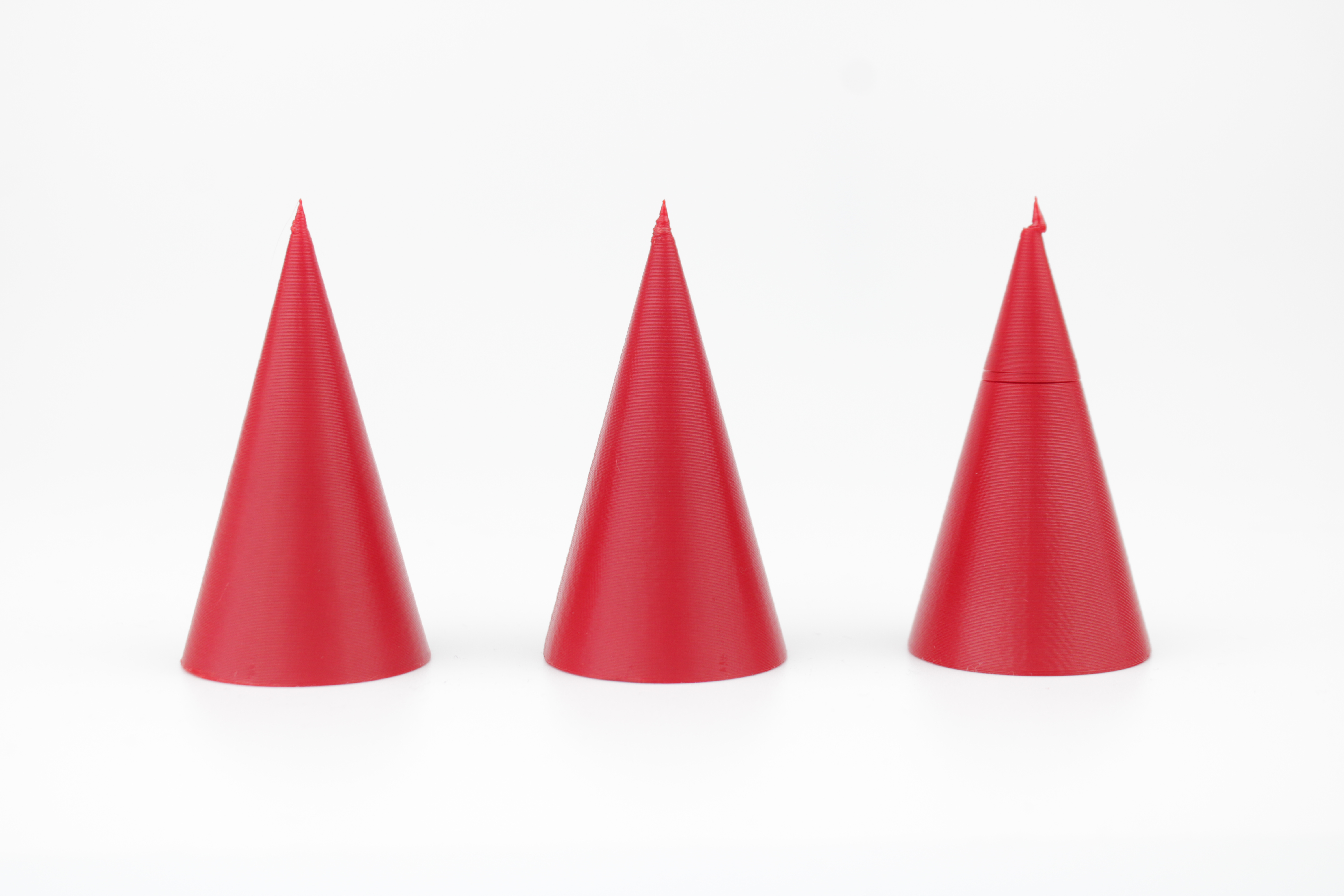
The cone below makes the trade-off easy to see. Its cross-section shrinks toward the tip, so the top layers are tiny and would otherwise print in a fraction of a second, with no time to cool before the next layer lands on them.
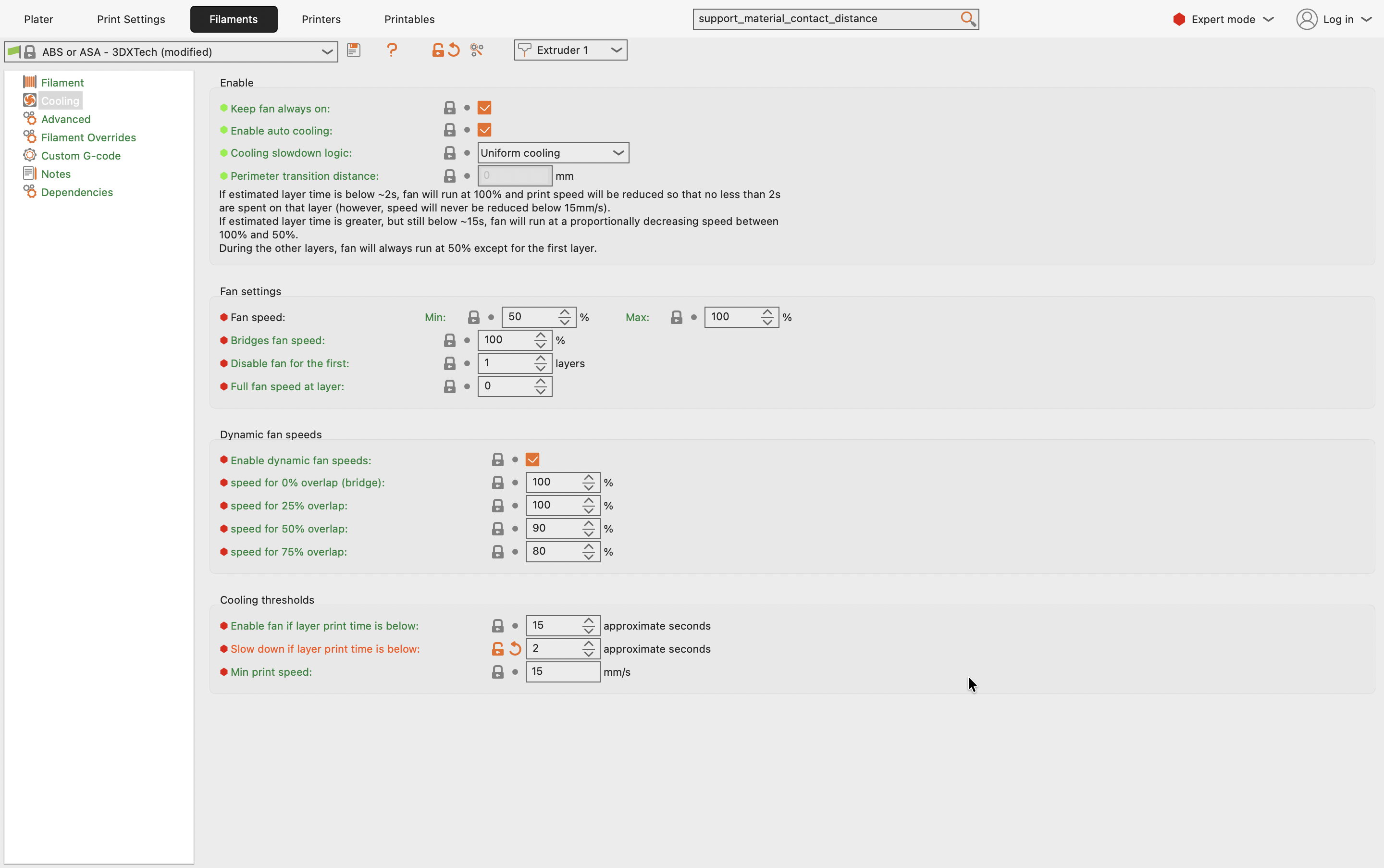
With Slow down if layer print time is below set to 2 seconds, the slicer barely intervenes and the whole cone prints in 39 minutes:
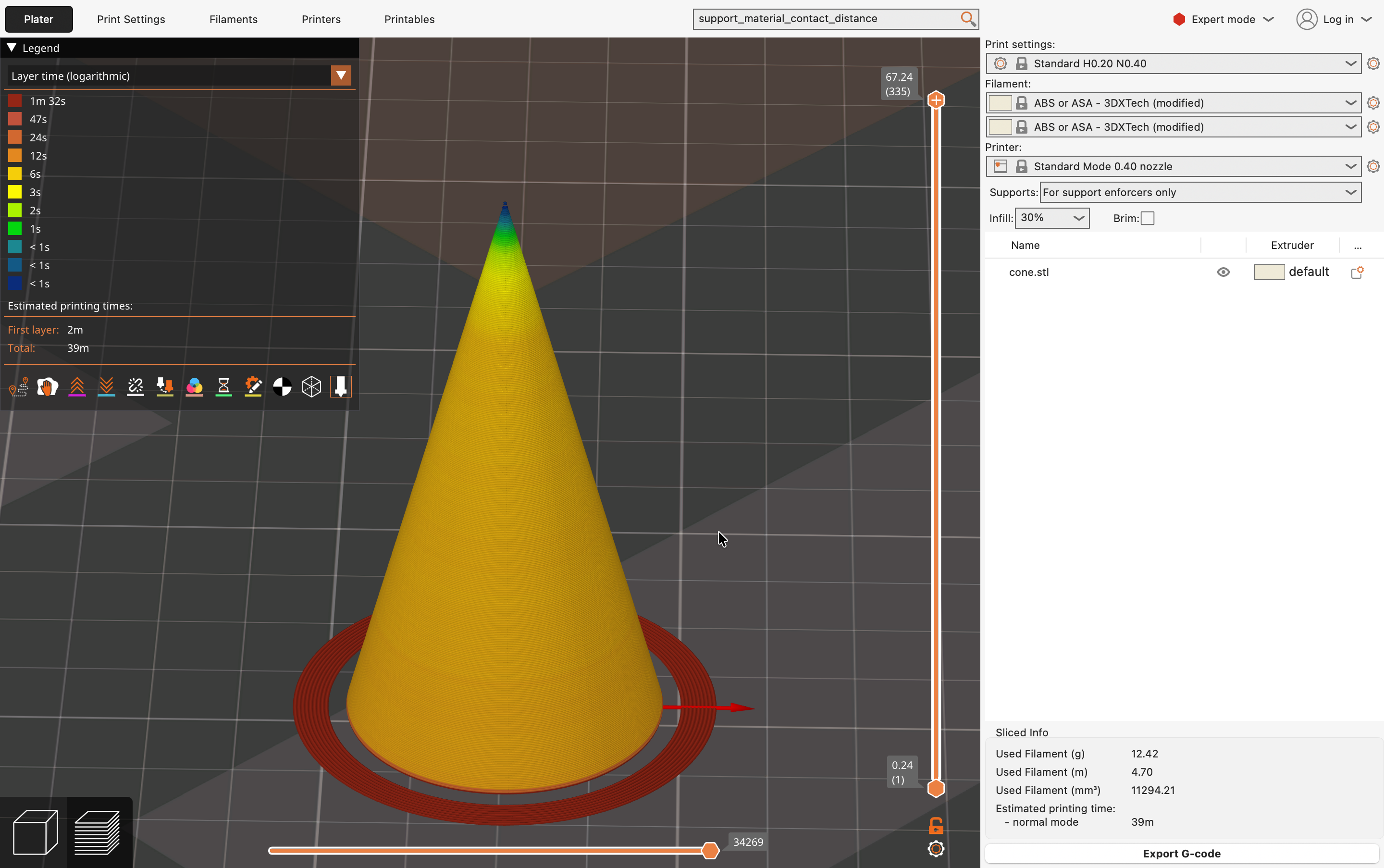
Raise the same field to 15 seconds and the slicer holds every thin layer for longer, which stretches the print to 1 hour 8 minutes:
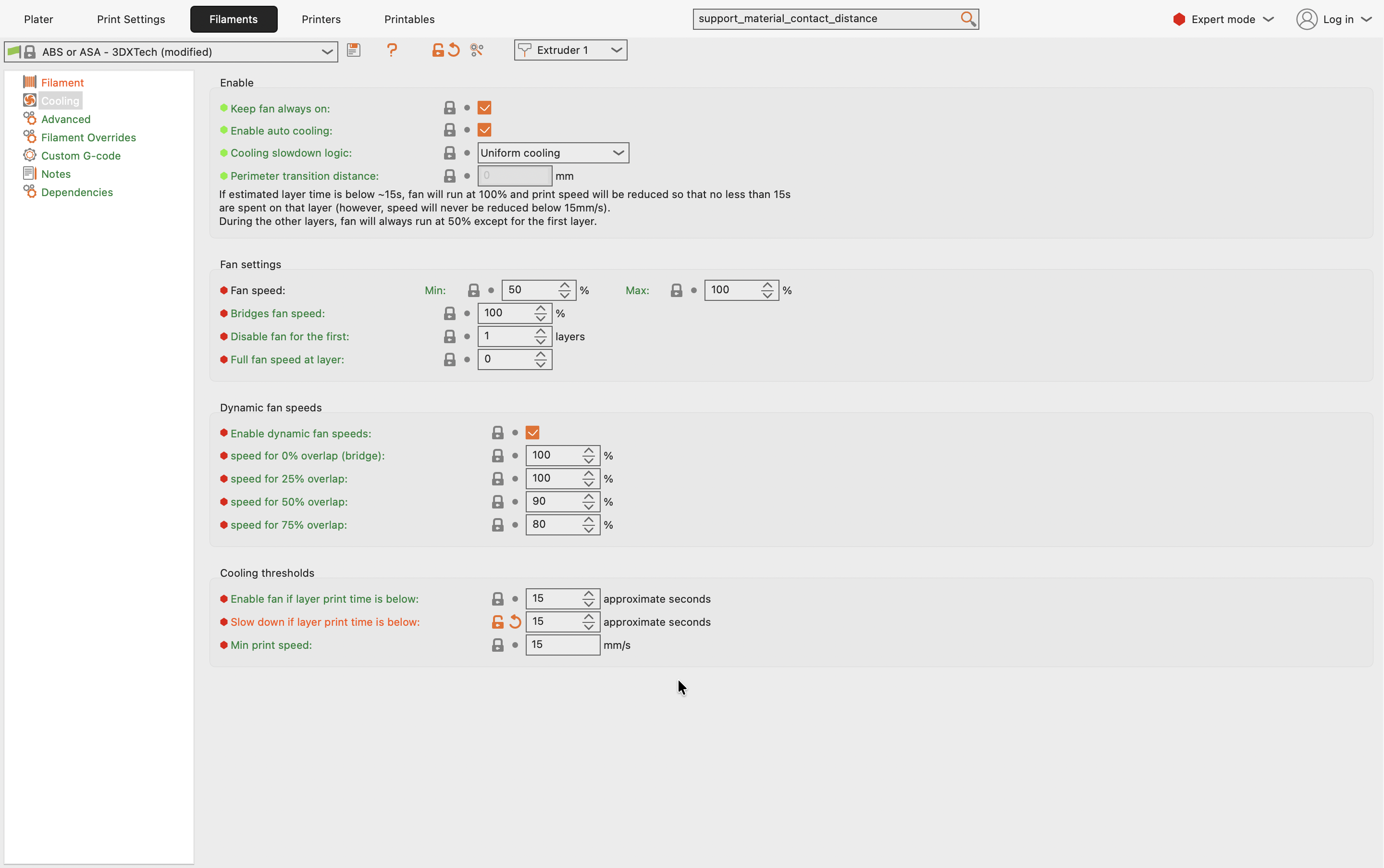
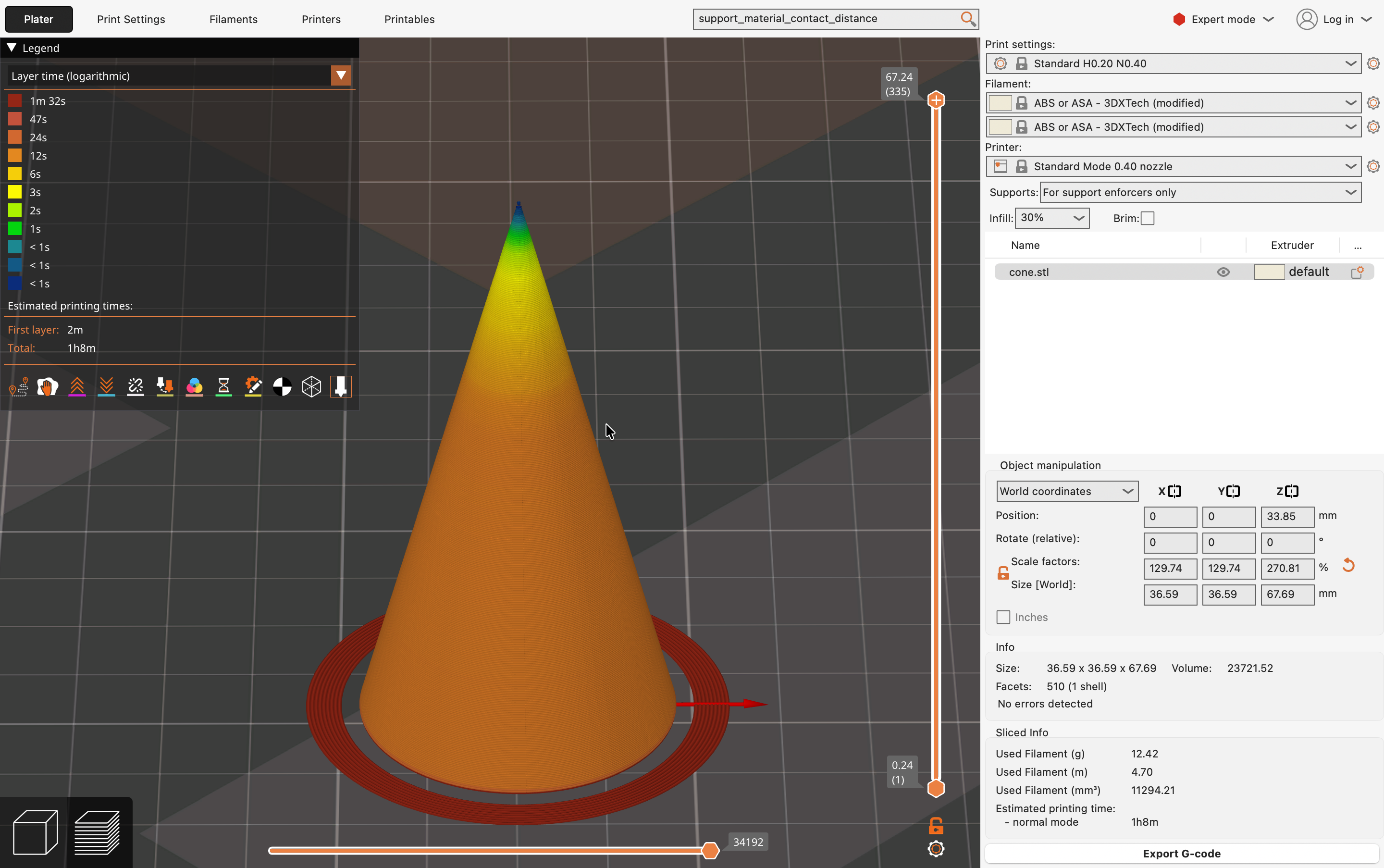
Use the Layer time view in the preview (the legend dropdown on the left) to check this on your own geometry before committing to a long print.
Configuring Fan Settings for High-Temperature Materials
Part cooling fans drastically increase the cooling rate of the deposited layer. While beneficial for materials like PLA to freeze overhangs and bridges quickly, excessive cooling is detrimental to layer adhesion for most high-temperature materials.
- General Guideline: For materials like Nylon, PC, PEEK, PEKK, and Ultem printed in a heated chamber, disable the part cooling fan for most of the print to maximize layer fusion. Set fan speeds to
0%in the main cooling settings. - Overhangs and Bridging: Cooling may be necessary only for challenging geometries like steep overhangs or long bridges to prevent sagging or collapse.
- Navigate to Filament Settings -> Cooling.
- Enable Enable dynamic fan speeds.
- Configure the fan speed curve based on overhang angle or enable Bridging fan speed. Start with low values (e.g.,
10-30%) only for severe overhangs/bridges. - Vision Miner profiles provide optimized starting points for dynamic cooling, but geometry-specific adjustments are often needed.
Fan use reduces Z-axis strength with high-temp materials
Using the fan unnecessarily with high-temp materials will significantly reduce Z-axis strength by cooling the previous layer too quickly before the next one bonds. Only use it where structurally required for overhangs/bridges.
FAQ
Support
If you could not find an answer here, reach out to our support team.