Loading and Unloading Filament
Load and unload filament automatically or manually from the Web Interface — lever position 2, 45-degree cut, extrusion checks and fixes if gears won't grip.
This guide details the methods for loading and unloading filament into the Vision Miner 22IDEX V4, covering both automatic and manual procedures. Proper filament handling is crucial for successful prints and preventing damage to the extruder mechanism.
Properly loading filament ensures a consistent feed to the hotend, while correct unloading prevents clogs and damage. This guide covers the standard procedures using the built-in features and the Web Interface.
Hot surfaces and moving parts
Read the Safety - Before You Begin article to understand the hazards involved in working on the Vision Miner 22IDEX V4 – including electrical, thermal, mechanical, and chemical risks. All procedures in this wiki are provided as recommendations only. By choosing to follow any procedure, you do so at your own risk.
Tools and Materials
- Filament spool (correct material type for your print)
- Flush cutters (for cutting filament)
- Heat-resistant gloves (optional, for safety)
Check extruder lever position before loading
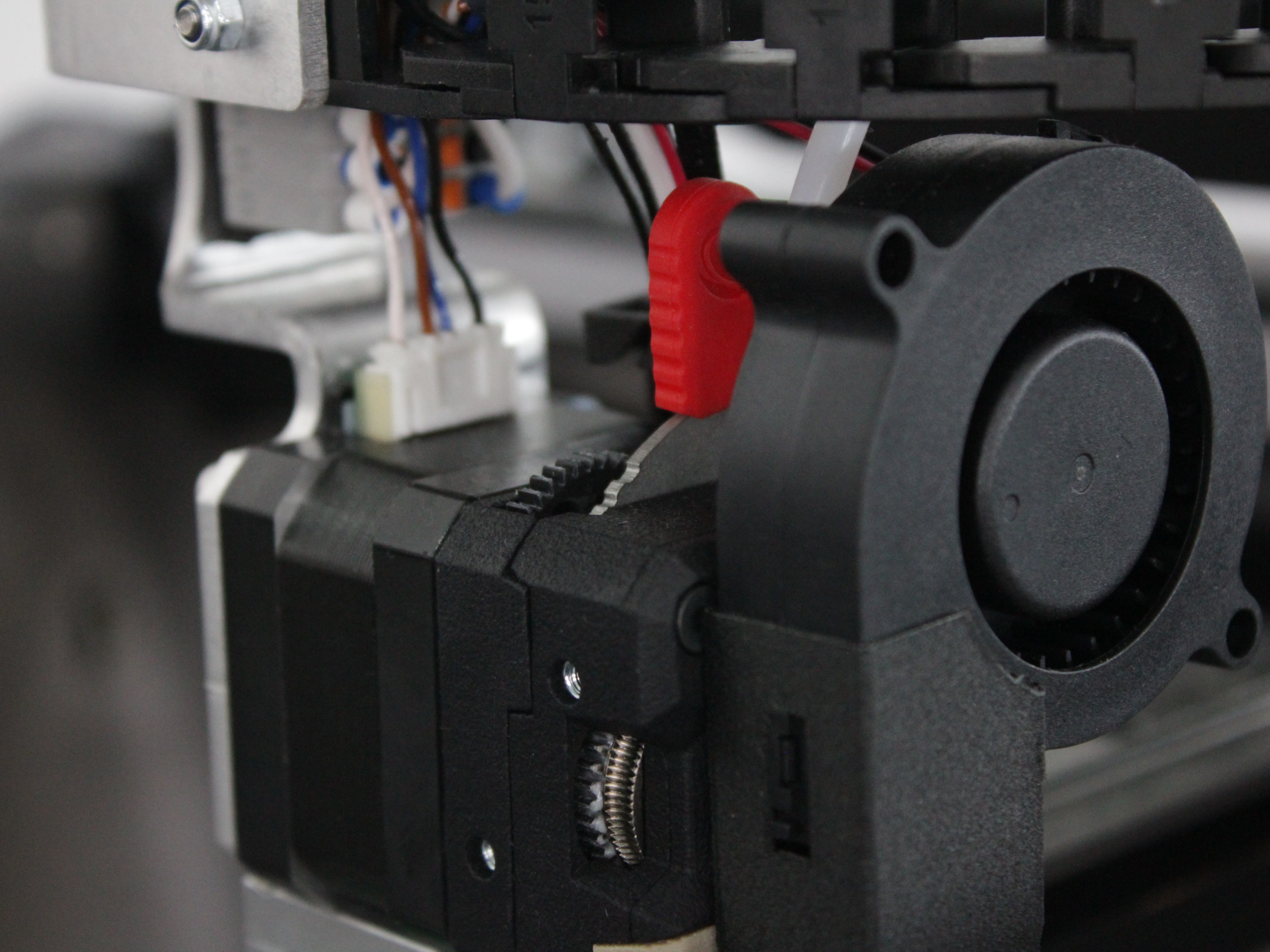
Before loading or unloading, ensure the Extruder Gear Lever for the relevant toolhead is set to position 2. Positions are counted from the left: push the lever fully to the left (position 0), then move it two positions to the right. The filament path from the spool to the inlet must be clear and unobstructed. For details and photos of every position, refer to the Extruder Gear Lever article.
1. Automatic Loading
- Place Spool: Position the filament spool onto the holder inside the chamber. Ensure the filament feeds from the bottom of the spool towards the filament inlet, preventing sharp bends or tangles.
- Access Web Interface: Open the printer's Web Interface and navigate to the Dashboard.
- Initiate Load: Click Load Filament for the desired tool (Tool 0 for Left, Tool 1 for Right).
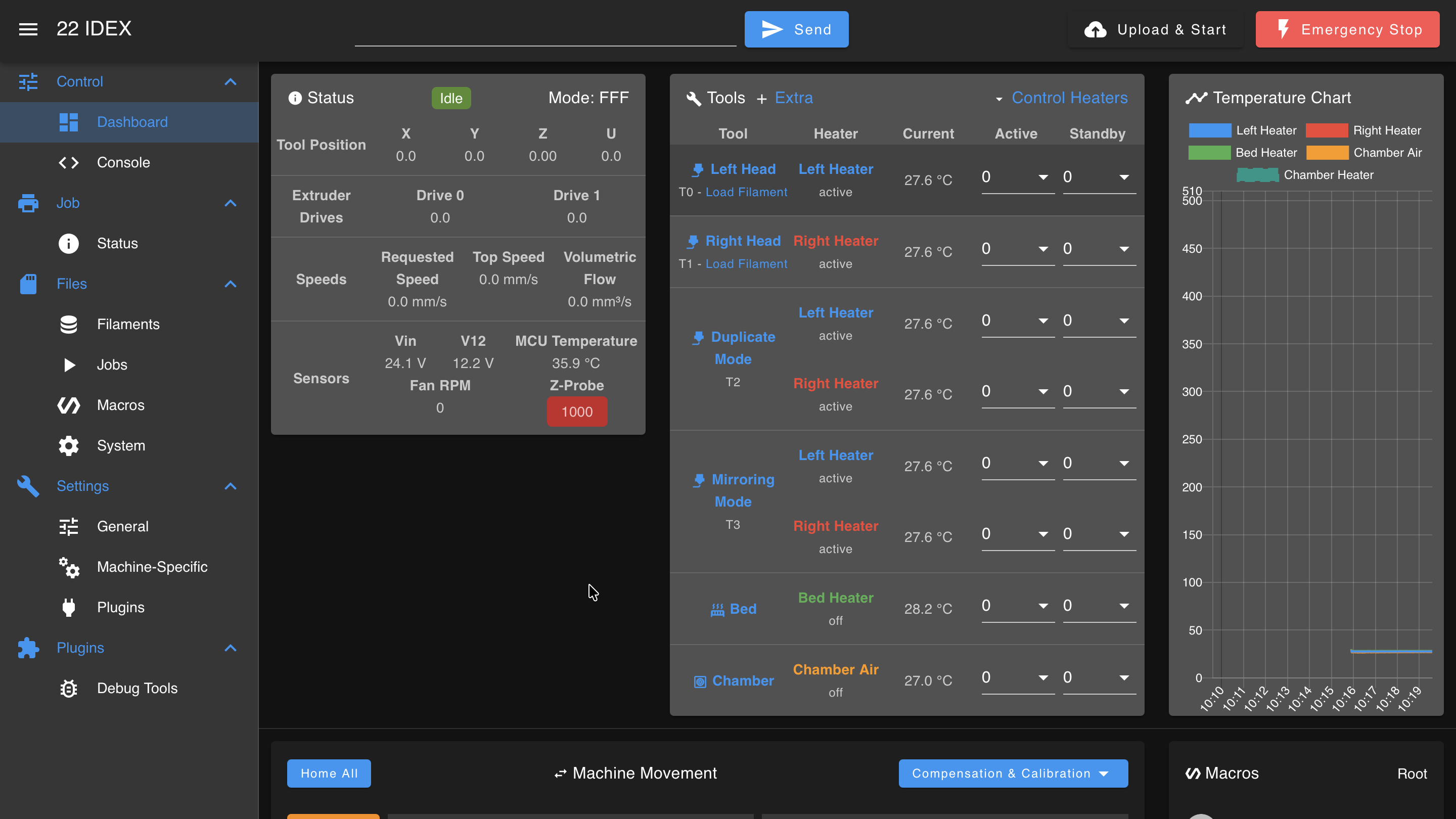
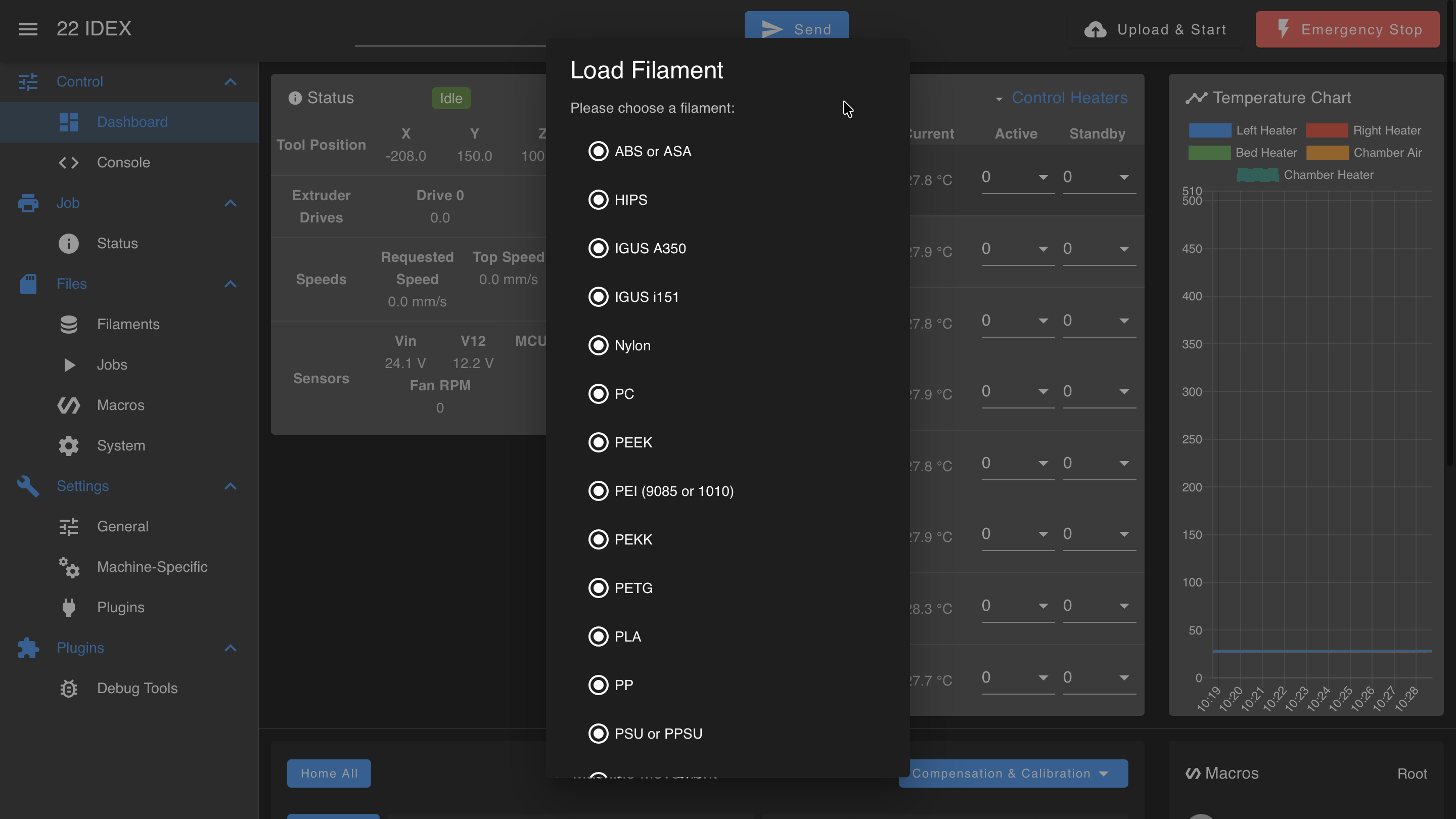
- Select Material: Choose the corresponding material type from the prompt that appears. The printer will home if it hasn't already.
- Prepare Filament: Cut the end of the filament at a sharp 45-degree angle using flush cutters. This creates a point for easier insertion.
- Insert Filament: Guide the cut end of the filament into the corresponding filament inlet tube for the selected tool.
- Feed to Gears: Gently push the filament until you feel resistance, indicating it has reached the extruder drive gears. Check that the Extruder Gear Lever is in position
2- fully left, then two positions to the right, as in the photo below.
- Engage Extruder: In the "Feed the filament" prompt, click Start Extrusion. The machine will begin automatically pulling the filament through the extruder and towards the hotend.
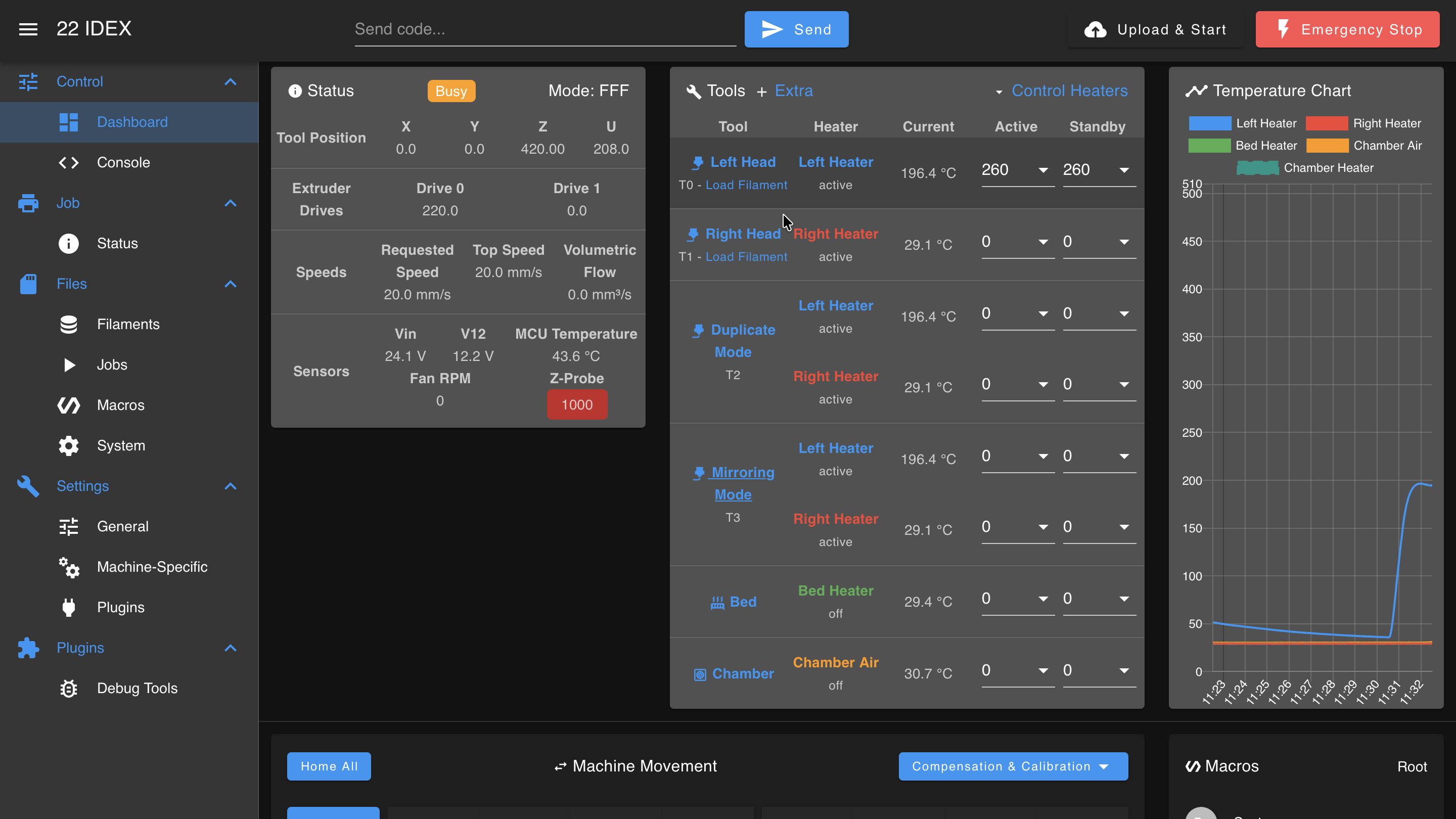
- Check Extrusion: The "Filament Loading Check" prompt asks: "Is new filament visible coming out of the nozzle?"
- If the new filament color/type is not yet visibly extruding from the nozzle, select No - Extrude More.
- Once you see the new filament consistently extruding, confirm by selecting Yes - Filament Visible.
- If you click No - Extrude More multiple times and don't feel the gears grabbing the filament, see the FAQ: Filament Won't Engage with Gears.
2. Automatic Unloading
- Access Web Interface: Navigate to the Dashboard in the Web Interface.
- Initiate Unload: Click the loaded filament name under the corresponding tool (for example,
T0 - ABS or ASA) and select Unload Filament from the menu that appears.
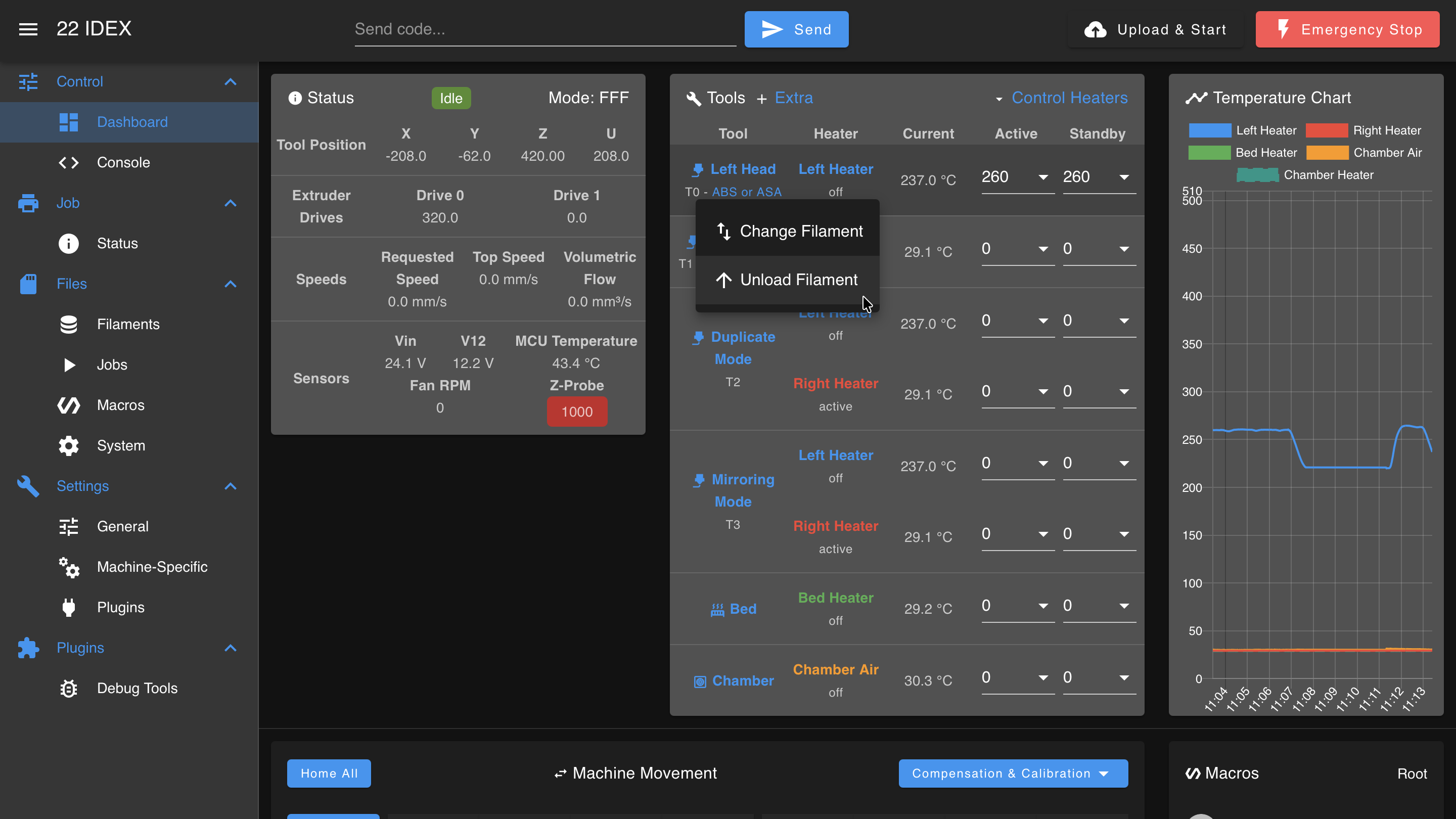
- Automatic Retraction: The printer will automatically preheat the nozzle to the appropriate temperature and retract the filament out of the hotend and extruder.
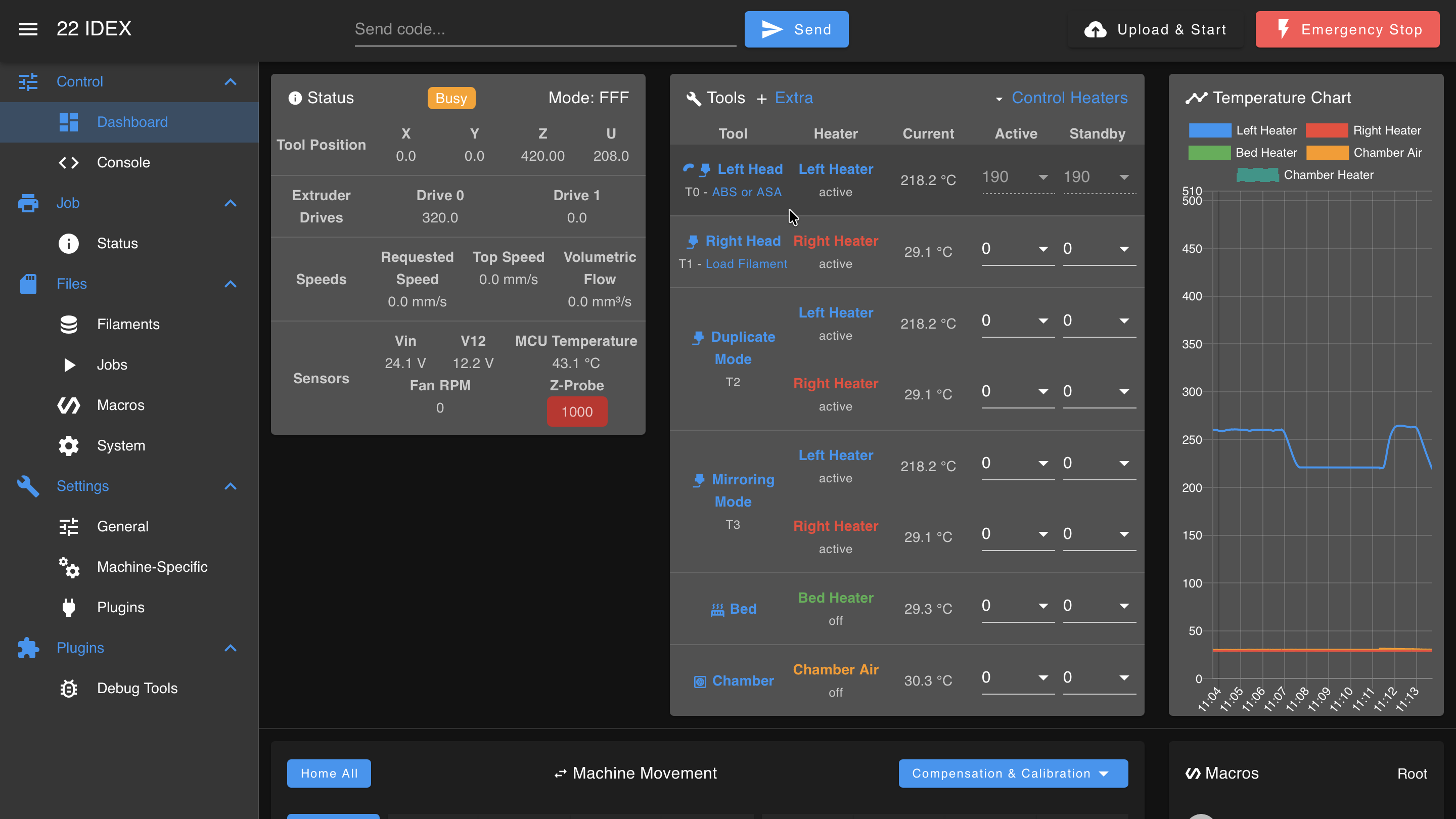
- Remove Spool: Wait for the machine to signal completion (often via a prompt in the Web Interface). Gently pull the filament fully out of the guide tube.
Secure filament to prevent tangling
As the filament is retracted, hold the loose end and guide it back onto the spool, securing it to prevent tangling. Remove the spool from the chamber.
3. Manual Loading
- Place Spool: Position the filament spool onto the holder inside the chamber, ensuring filament feeds from the bottom towards the inlet.
- Activate Tool: In the Web Interface Dashboard, pre-activate the tool you intend to load (T0 for Left, T1 for Right). The selected tool's status area will highlight, and the heater state will show as active.
- Set Temperature: In the tool's status area, enter the appropriate printing temperature for your filament (refer to manufacturer recommendations) and click Set, or select a pre-defined material. Wait for the nozzle to reach the target temperature.
- Prepare Filament: Cut the end of the filament at a sharp 45-degree angle.
- Feed Filament: Insert the cut end into the corresponding filament inlet tube until it stops, indicating it has reached the extruder gears.
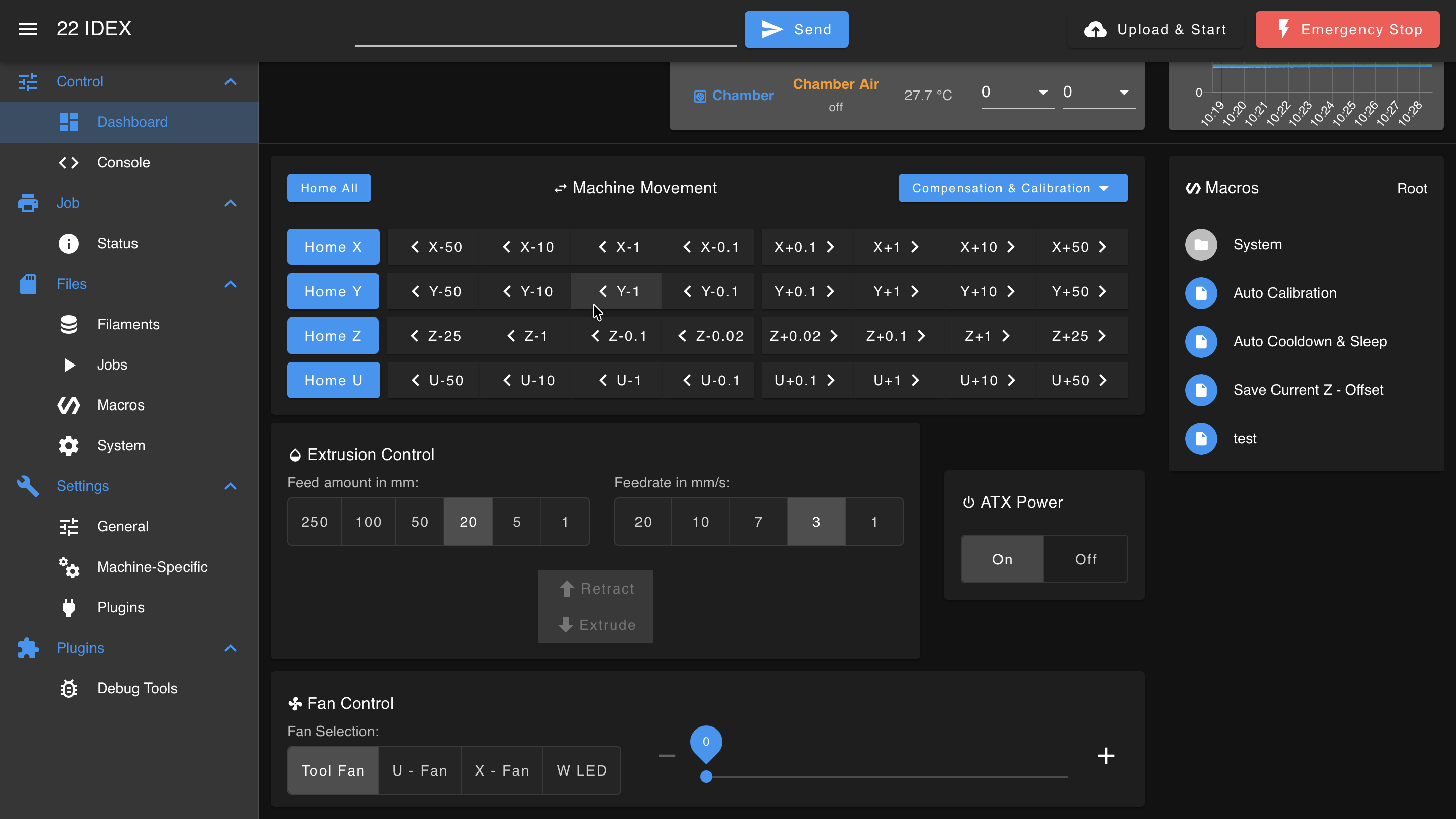
- Extrude Filament: Scroll down to the Extrusion Control section in the Dashboard.
- Set Amount (mm) to
50. - Set Feedrate (mm/min) equivalent to
7 mm/s(which is420 mm/min). - Gently push the filament while simultaneously clicking the Extrude button.
- Confirm Extrusion: Continue clicking Extrude until you see filament consistently extruding from the nozzle. Ensure the extruder gears are gripping and pulling the filament smoothly.
If gears don't grab filament
If you repeatedly click Extrude but don't feel the gears grabbing the filament, see the FAQ: Filament Won't Engage with Gears.
4. Manual Unloading
Use lower retraction temperature
For retraction, set the temperature slightly lower than the printing temperature but high enough for the filament to soften (e.g., if printing Nylon at 300°C, retract at 250°C). This helps prevent molten plastic from fouling the cold-end drive mechanism.
- Preheat Nozzle: Activate the correct tool and set the temperature as described above.
- Retract Filament: In the Extrusion Control section:
- Set Amount (mm) to
250(or more if needed to clear the tube). - Set Feedrate (mm/min) equivalent to
10 mm/s(which is600 mm/min). - Click the Retract button. Repeat if necessary.
- Remove Filament: Once the filament is fully retracted past the extruder gears, gently pull it completely out of the guide tube.
Secure filament to spool
As the filament is removed, hold the loose end and guide it back onto the spool, securing it to prevent tangling. Remove the spool from the chamber.
FAQ
Support
If you could not find an answer here, reach out to our support team.