Unboxing
Uncrate and set up a new 22 IDEX V3 — crate removal, leveling feet, cutting the four red transport zip ties, fitting the handle and antenna, first boot.
This guide covers the complete unboxing and initial setup of the Vision Miner 22IDEX V3. Follow these steps after receiving your shipment to safely unpack the printer, install accessories, and prepare it for first use.
Before you begin - safety and risk
Read the Safety - Before You Begin article to understand the hazards involved in working on the Vision Miner 22IDEX V3 - including electrical, thermal, mechanical, and chemical risks. All procedures in this wiki are provided as recommendations only. By choosing to follow any procedure, you do so at your own risk.
Save packing materials
Keep the shipping crate and all packing materials. You will need them if the printer ever needs to be shipped for service.
Tools and Materials
- Screwdriver or drill with Philips PH2 bit
- Utility knife
- Side cutters (flush cutters) - for cutting zip ties
- Two or more people for lifting
- Forklift or pallet jack (for moving the crate)
Unboxing
- Inspect the shipping crate for damage before opening. Check for any signs of exterior damage.
- If you find evidence of excessive damage, report it immediately to Vision Miner and the shipping company before proceeding.
- Move the crate to a flat, open area with at least 100 cm of clearance on all sides using a forklift or pallet jack.
- Remove straps holding the box to the pallet and remove plastic wrap on the outside of the box.
- Remove the top panel and 4 side panels.
- Carefully lift the outer box straight up with at least two people. Slide it up vertically to avoid scratching the printer.
- Set the box aside and save it for future use.
Positioning the Printer
- Lift the printer with at least two people and place it on a stable, level surface that does not wobble or rock. The surface must support at least 80 kg (≈ 175 lbs).
- Provide at least 150 × 150 cm (≈ 60 × 60 in.) of space for the printer. Keep at least 50 cm (≈ 20 in.) of clearance on all sides, with enough room for the front and rear doors to open fully. Adjust the four leveling feet at each corner until the printer sits level on the surface.
Removing Transport Protection
- Carefully pull away and remove the plastic wrap from the printer.
- Remove the protective film from the lid and front door glass.
- Open the lid and front door to access the interior.
- Locate the 4 red transport zip ties securing the belts. Cut each zip tie carefully with side cutters to avoid damaging the belts.
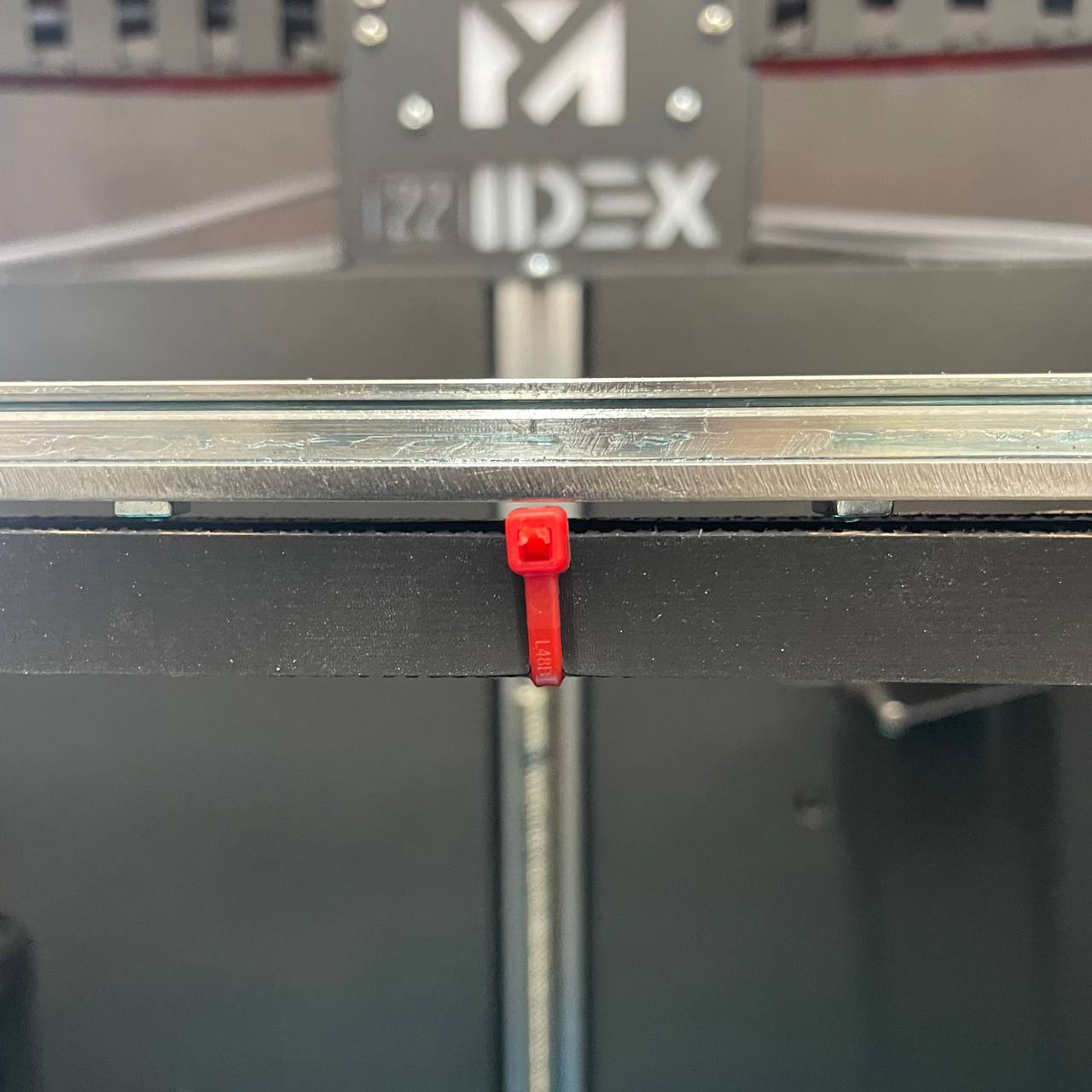
Cut zip ties carefully to avoid damaging belts
Cut carefully - do not nick or damage the belts.
- Lift the build plate upward to access the compartment underneath. Remove the accessory box from inside the printer.
- Open the accessory box and verify that all included parts are present. Inside the box you will find:
- Door handle
- Power cord
- Power button
- WiFi antenna (if applicable)
- Other tools and accessories
Contact support if any part is missing or damaged
If any part is missing or damaged, contact support team before proceeding.
Installing Accessories
- Attach the door handle: Use the two Phillips head screws to attach the handle to the door.
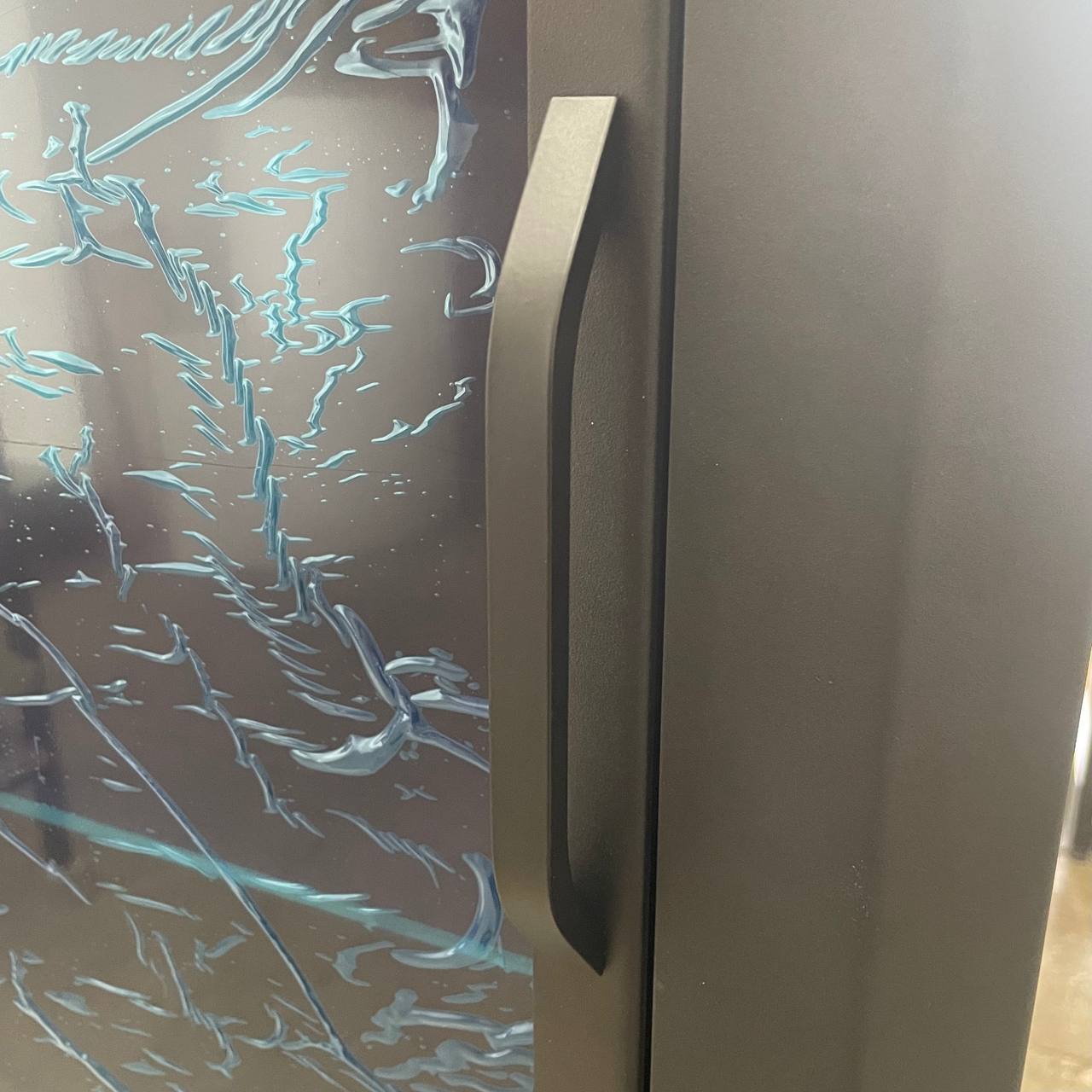
- Position WiFi antenna (if applicable): The WiFi antenna is on the inside of the electronic maintenance door for shipping. Locate it and move it to the outside of the door.
Connecting Power and First Boot
- Connect the included power cord to the printer and plug it into a grounded outlet rated for 20 amps.
Proper grounding is crucial for safe operation
Proper grounding is crucial for safe operation. Never use an ungrounded outlet or adapter.
- Test the power button: turn the button clockwise to power on the machine. Press the button in to turn it off.
- Verify the Web Interface loads and the printer initializes correctly.
Safety Precautions
- Know the location of your facility's circuit breakers and how to turn them off in an emergency.
- Know the location of fire extinguishers and how to use them. Use only certified extinguishers rated for electrical fires.
- Know local procedures for first aid and emergency assistance.
- Use adequate lighting around the printer.
- Maintain recommended temperature and humidity in the operating area.
- Do not operate the printer in an environment with volatile or flammable compounds.
- Follow all local and national safety codes during setup and operation.
Support
If you could not find an answer here, reach out to our support team.