Firmware Update
Update 22 IDEX V4 firmware over the air from the Web Interface - download the ZIP, install it, restart the mainboard and verify the new version.
Firmware updates bring new features, improved performance, and bug fixes to your Vision Miner 22IDEX V4. The V4 updates over the air (OTA) through the Web Interface – no SD card removal or manual file copying required.
This guide walks you through the update process step by step. Follow the steps in order. All button names and messages are shown exactly as they appear in the interface.
Before you begin - safety and risk
Read the Safety - Before You Begin article to understand the hazards involved in working on the Vision Miner 22IDEX V4 – including electrical, thermal, mechanical, and chemical risks. All procedures in this wiki are provided as recommendations only. By choosing to follow any procedure, you do so at your own risk.
Use only firmware from this wiki or our support team
Download firmware only from the links in this article or from files sent to you directly by our support team. Do not install firmware found anywhere else - including RepRapFirmware or Duet releases on GitHub, forums, or other websites. Vision Miner firmware is customized for the 22IDEX, and installing generic releases can leave the printer inoperable.
Download the Firmware
Download the latest firmware package for your machine. It is a single ZIP archive that works on all Vision Miner 22IDEX V4 printers.
| Version | Filename |
|---|---|
| 22IDEX V4 (latest) | 22IDEX-V4-4.1.7-ota.zip |
| 22IDEX V4 (4.0, previous) | 22IDEX-V4-V4.0-ota.zip |
Save the ZIP archive somewhere you can find it easily, such as your Downloads folder. Do not unzip it.
Which version should I use?
Always install the latest version. Only download the older 4.0 package if our support team specifically asked you to roll back.
Updating the Firmware
- Open the printer page in your browser to reach the Web Interface.
- In the left menu, click
Settings, then clickMachine-Specific. - On the
Machine-Specificpage, find theInstall Updatebutton and click it.
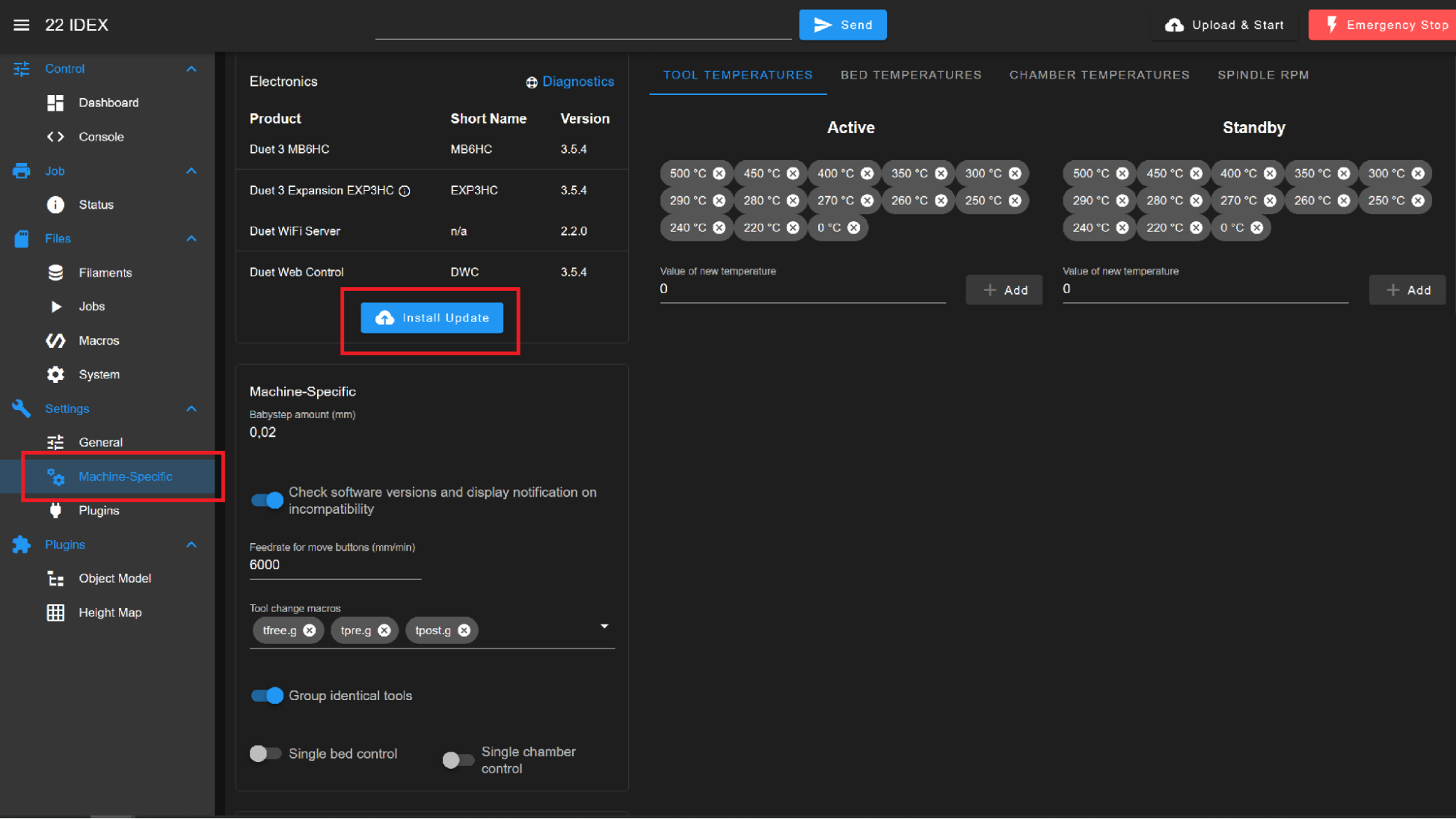
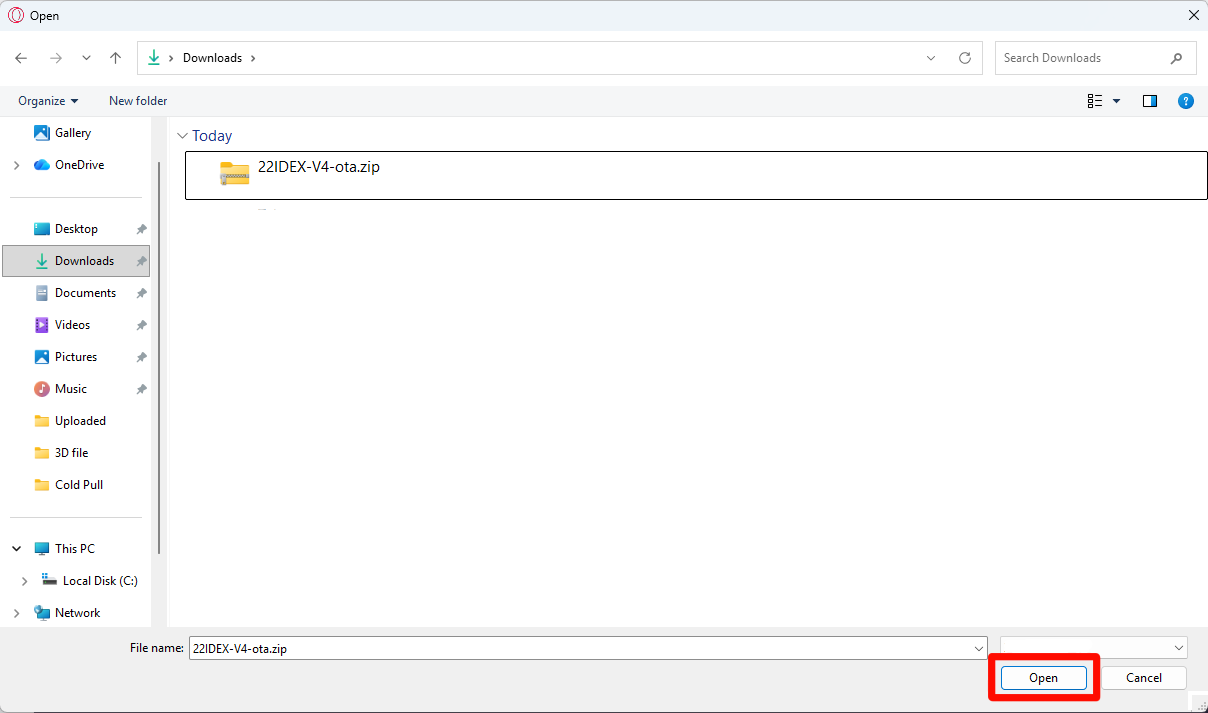
- A file selection window will open. Find the firmware ZIP archive you downloaded and select it.
- Click
Open.
Select the ZIP archive, not its contents
Select the ZIP archive itself. Do not unzip the archive before the update, and do not select individual files from inside it.
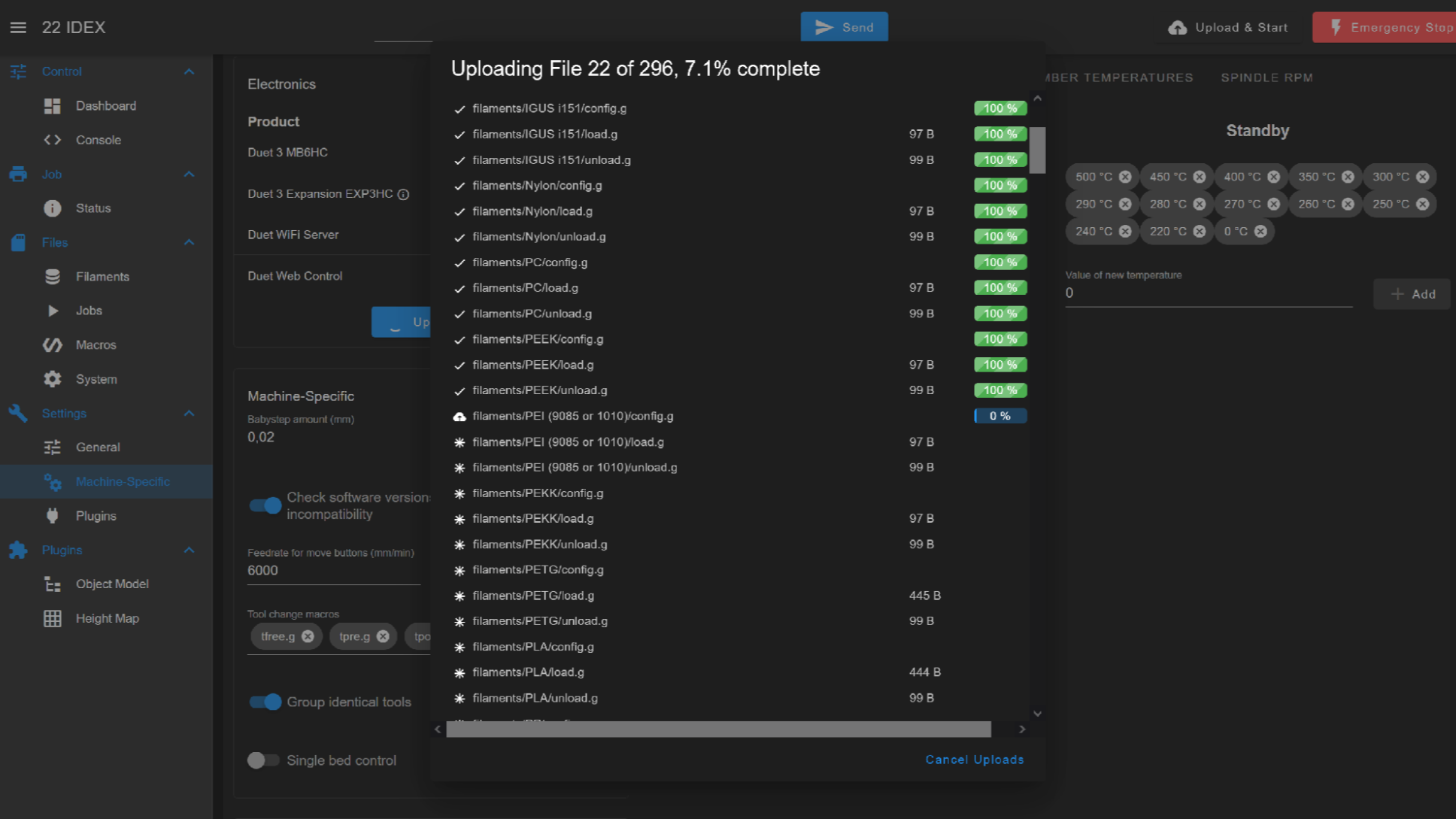
-
The printer starts uploading the update files. You will see a progress window, for example:
Uploading File ... completeWait until the upload finishes.
Keep the printer powered on
Do not turn off the printer while the update is in progress. The printer must remain powered on to complete the firmware installation.
- After the files are uploaded, the
Install updates?window appears, asking to update the mainboard, expansion board, and Wi-Fi module firmware. ClickNo.
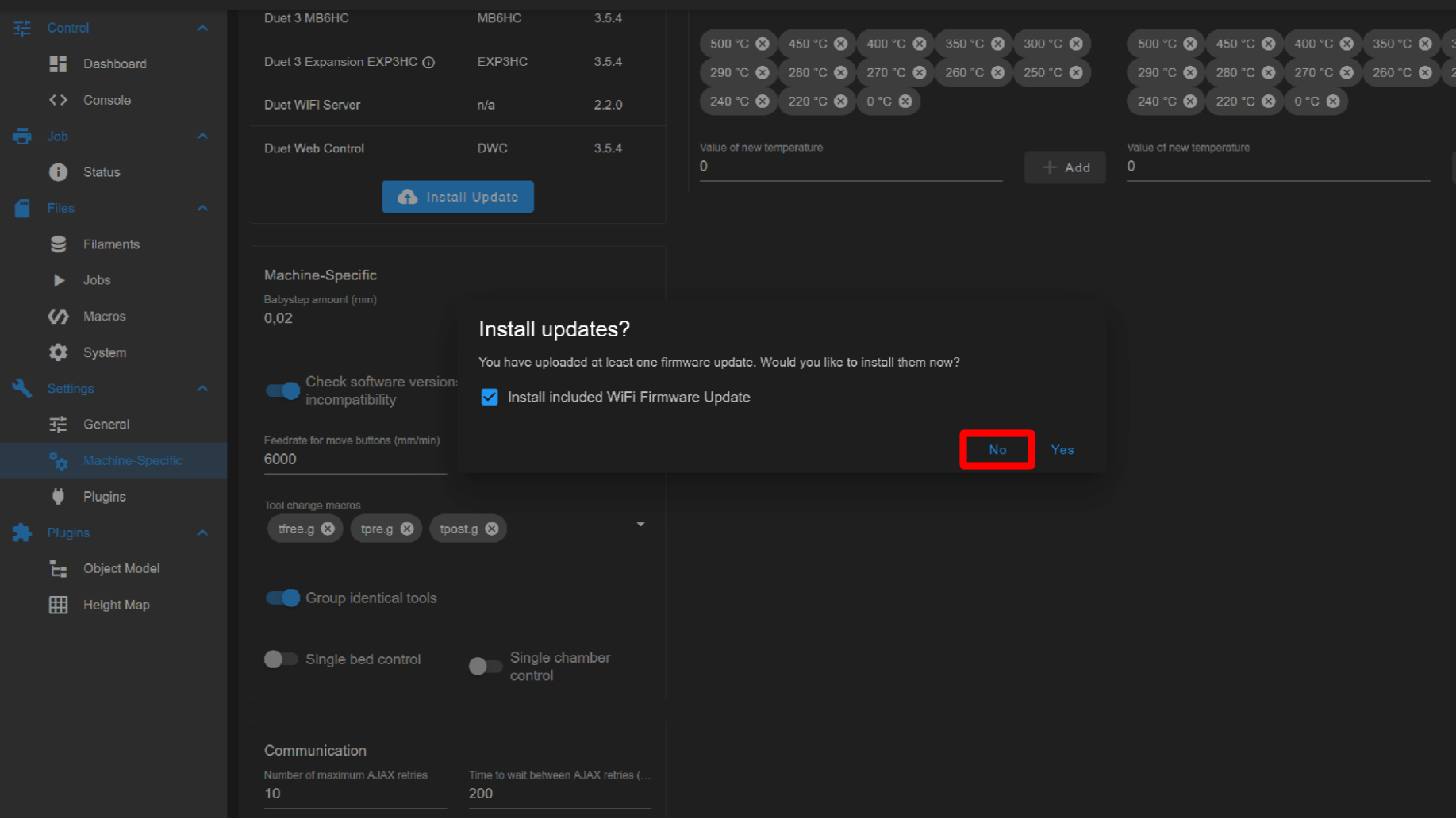
You do not need to flash the boards. This update only replaces the firmware files from the archive – the macros and settings the printer needs to run. The boards themselves do not need updating.
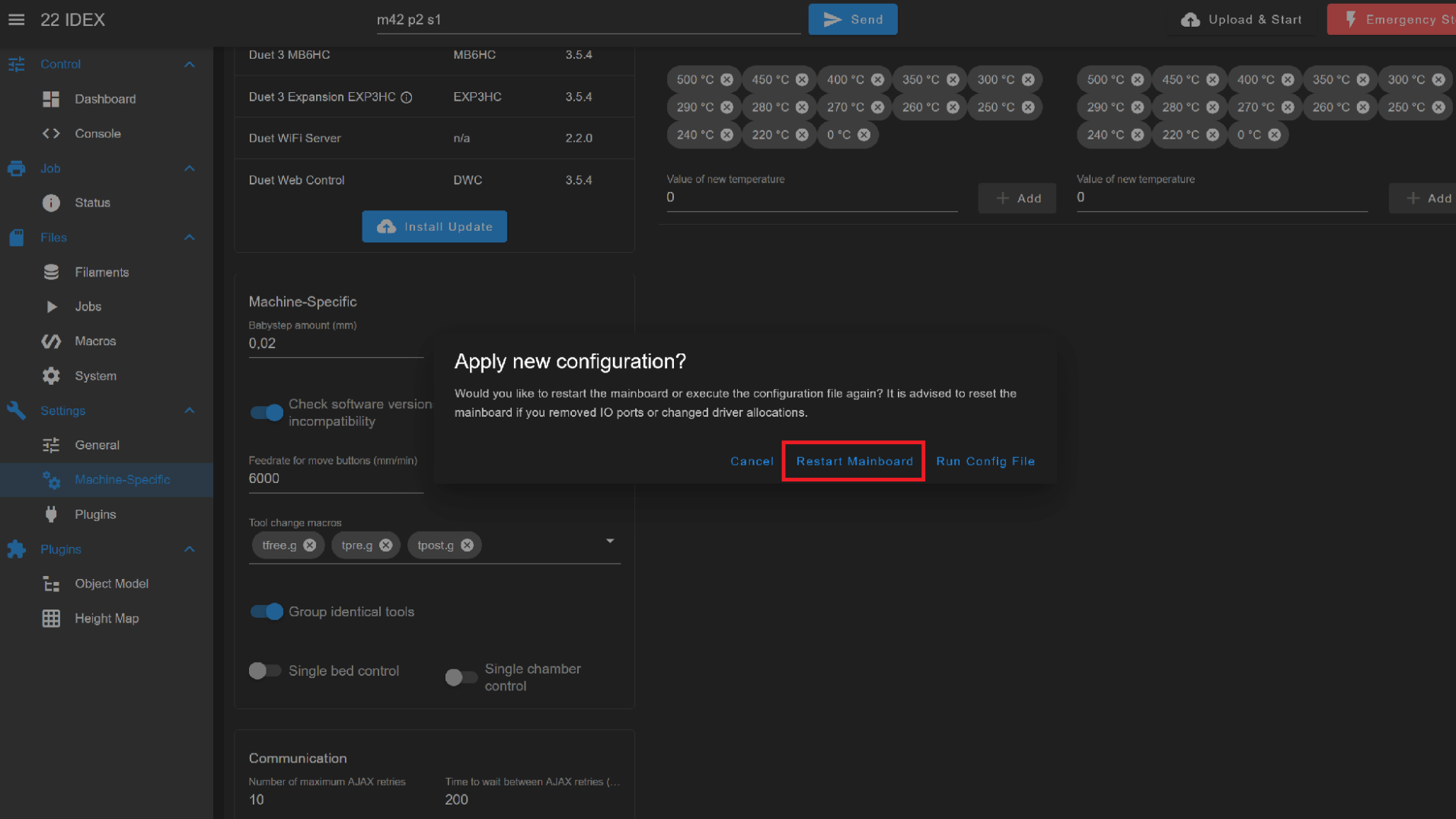
- Once the update is installed, the
Apply new configuration?window appears. ClickRestart Mainboard. The printer control board will reboot – this is a normal part of the update.
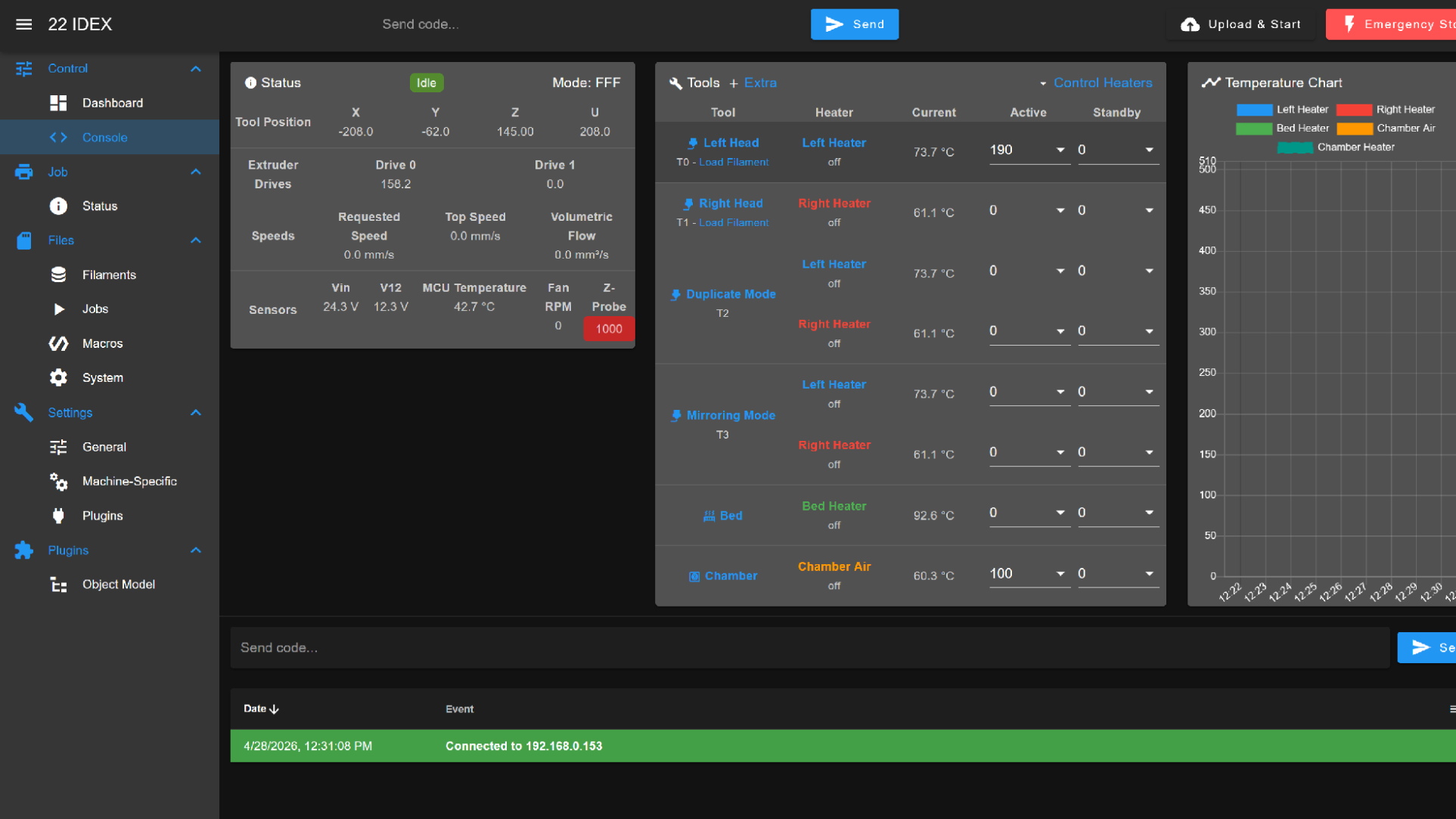
- After the reboot, wait until the Web Interface connects to the printer again. The update is complete when the printer status returns and a message such as
Connected to ...appears at the bottom of the page.
If the page does not reconnect
If the page does not reconnect automatically, wait 30–60 seconds and refresh the browser page.
Verify the Firmware Version
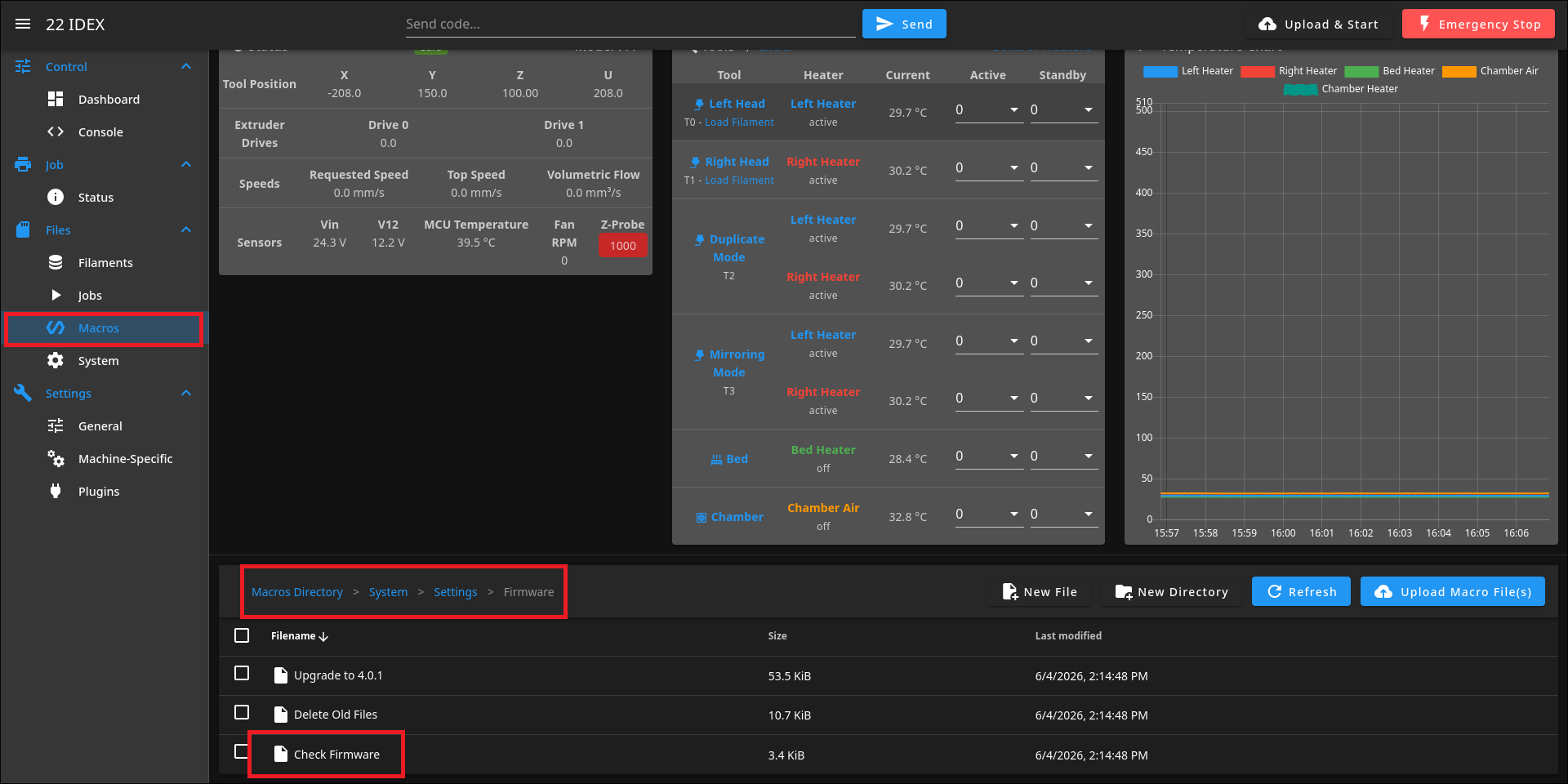
- After the Web Interface reconnects, go to
Files > Macros, then openSystem > Settings > Firmware. - Click
Check Firmware.
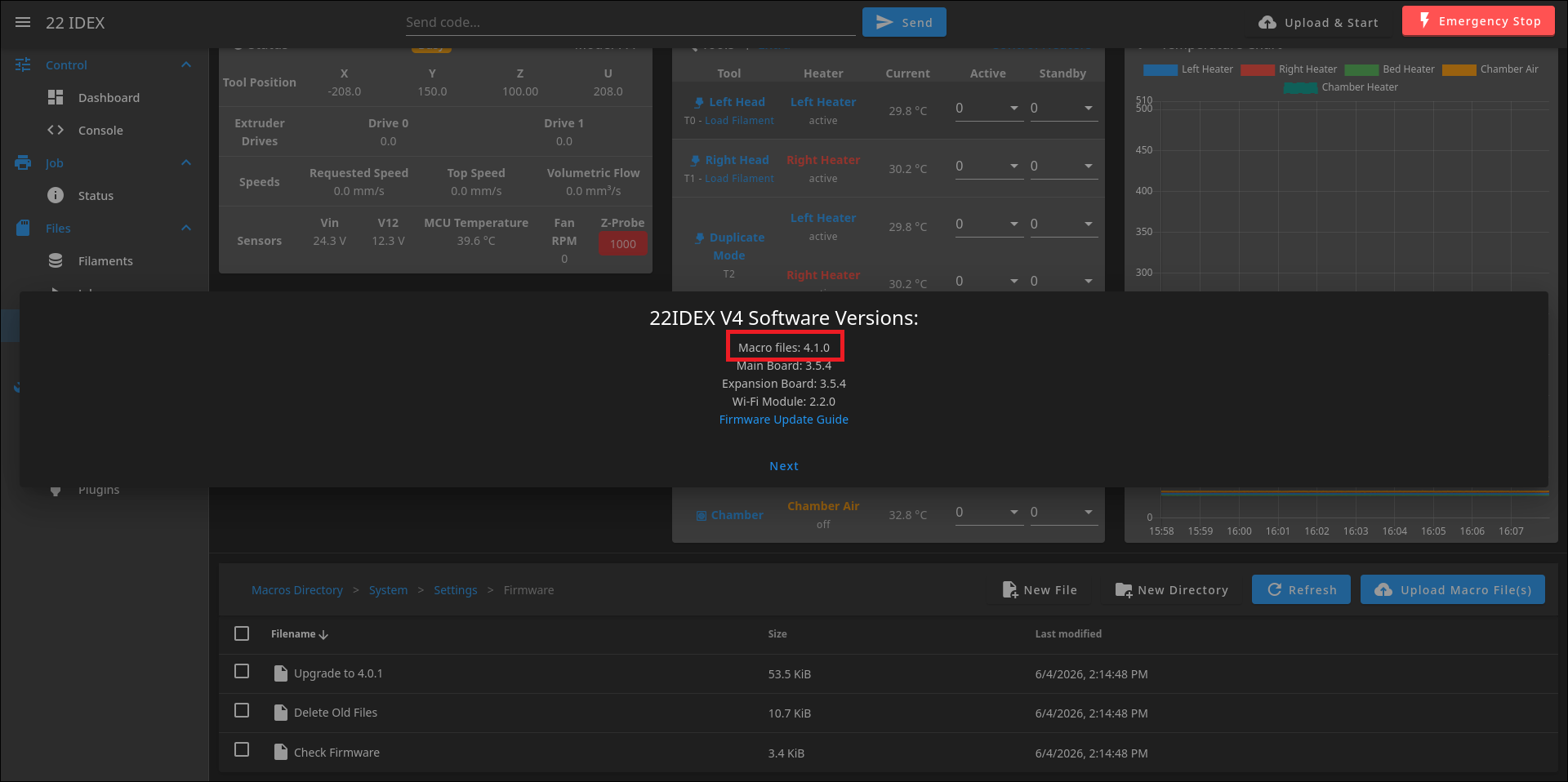
- In the software versions window, check the
Macro filesversion. It should match the current firmware version listed in the Download the Firmware section above, unless our support team gave you a different target version.
If the version is different
If the version is not what you expected, take a screenshot of the message on the screen and contact our support team. Do not repeat the update multiple times without guidance from support.
FAQ
Troubleshooting
Support
If you could not find an answer here, reach out to our support team.