HEPA Filter
Swap a clogged HEPA filter on the 22 IDEX V4 (serial 296 and up) — housing and bracket removal, correct carbon-side orientation, and airflow checks.
This guide covers replacing the Rev 2 HEPA filter on the Vision Miner 22IDEX V4 only for printers with serial number 296 or higher. The HEPA filter is located inside the enclosure on the right side (when facing the front of the printer) and removes particles and fumes from the chamber air during printing. Replace the filter when airflow drops noticeably or the filter media looks visibly clogged or discolored.
Before you begin - safety and risk
Read the Safety - Before You Begin article to understand the hazards involved in working on the Vision Miner 22IDEX V4 - including electrical, thermal, mechanical, and chemical risks. All procedures in this wiki are provided as recommendations only. By choosing to follow any procedure, you do so at your own risk.
If the printer was recently in use, internal surfaces and the chamber heater (located on the opposite side) may still be hot. Let everything cool to room temperature before reaching inside the enclosure.
Serial number 296 or higher – this guide only
If your serial number is 295 or lower, you have a Rev 1 HEPA filter. To order a replacement, contact our support team. If your serial number is 296 or higher, this guide applies. If you are unsure which serial number you have, contact our support team.
Tools and Materials
- 2.5 mm Hex screwdriver (hex wrench)
- 2 mm Hex screwdriver (hex wrench) – only needed if your machine has the older 2 mm button head housing screws
- 5.5 mm Wrench (or socket)
- Threadlocker (we recommend Loctite 243)
- HEPA Filter – Rev 2 replacement filter for serial number 296 and above (required for this guide)
Preparation
-
Raise the print bed as high as possible to create working space inside the enclosure. You can do this from the Web Interface or by using the jog controls before powering off.
-
Turn off the printer and unplug it from the power outlet.
-
Wait at least 60 seconds for the capacitors to discharge.
Removing the Stainless Steel Housing
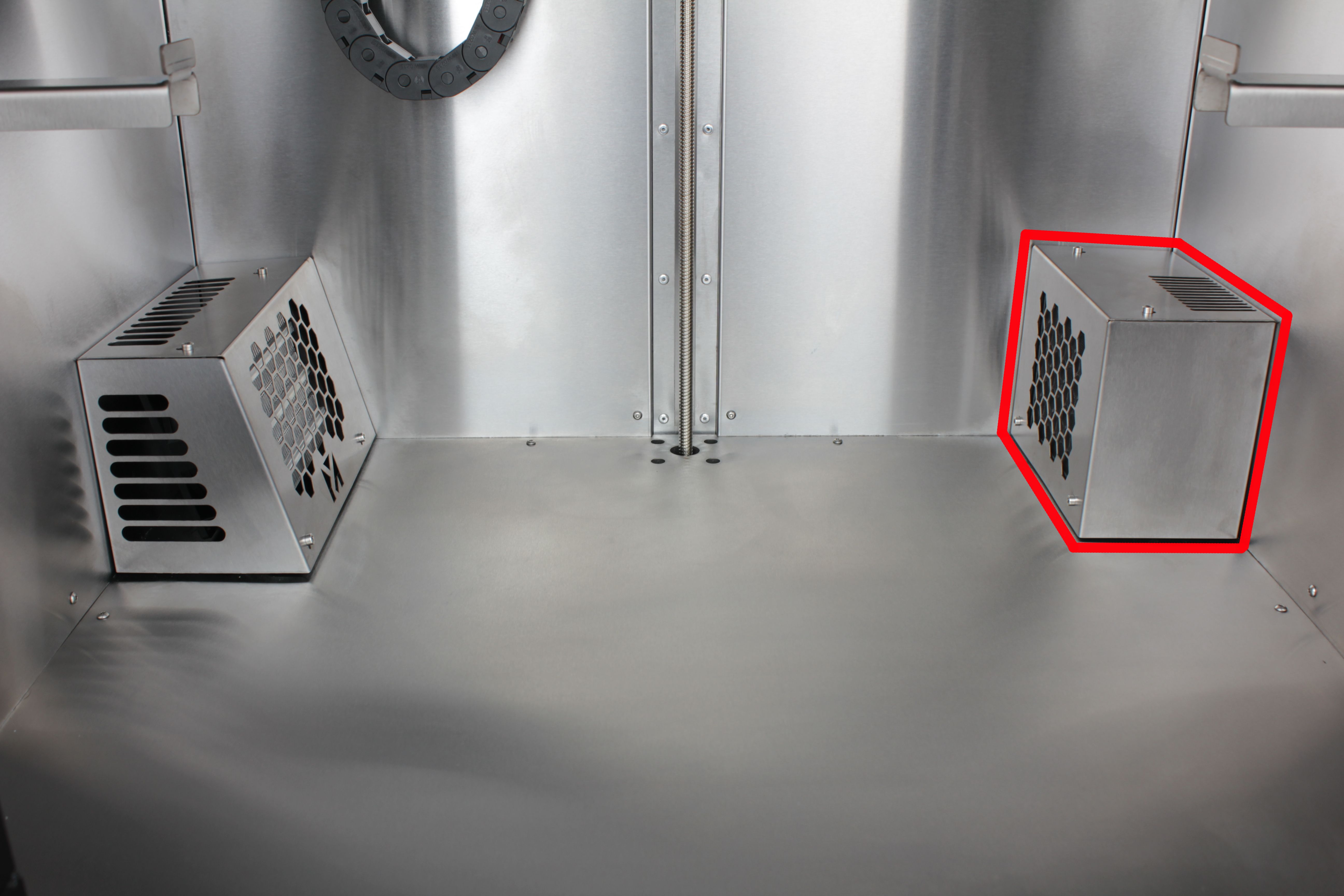
- Look inside the enclosure. On the left and right sides you will see two rectangular protrusions. The left one is the chamber heater with the chamber fan. The right one is the HEPA filter assembly – that is what we are working with.
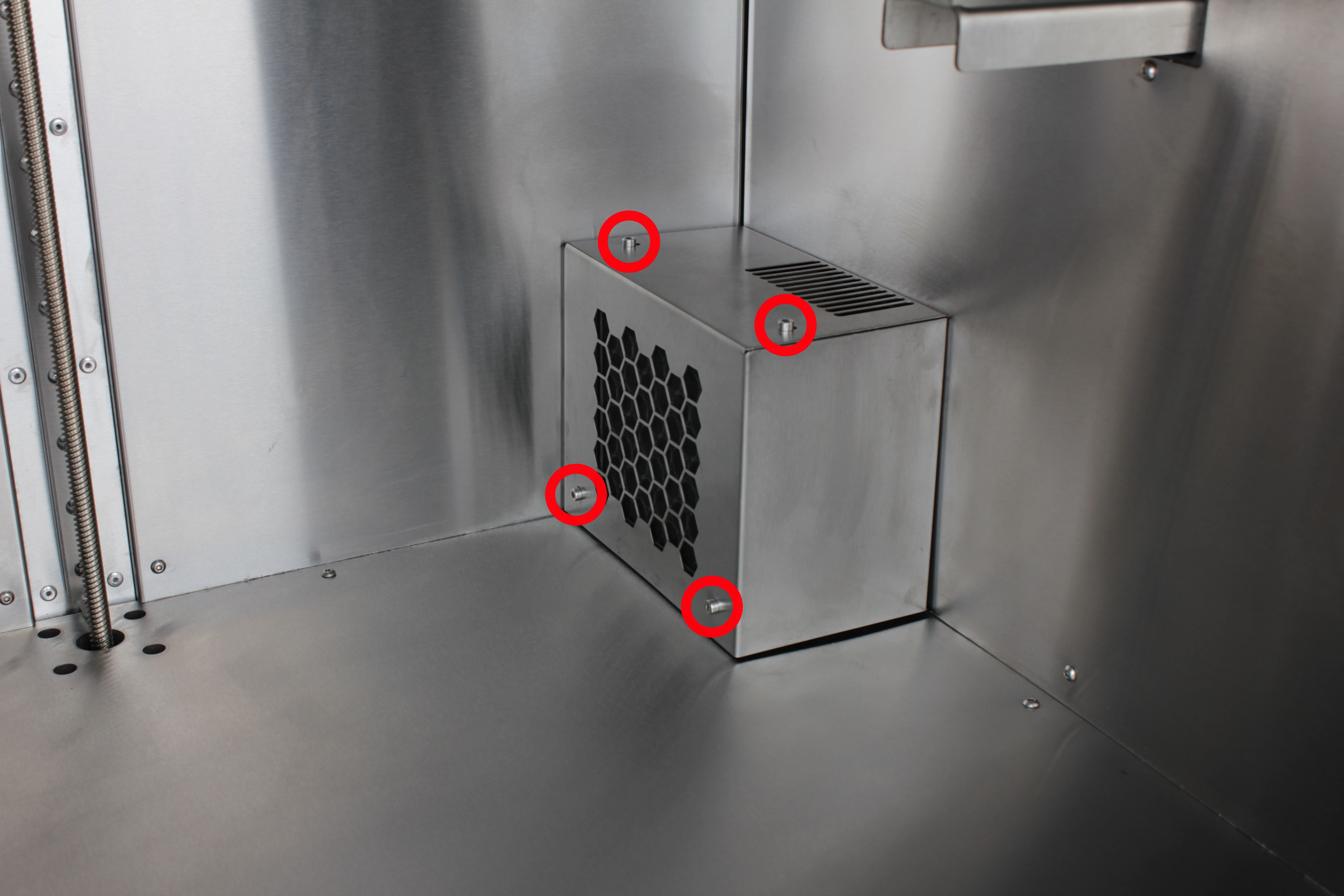
- Locate the four M3×6 screws holding the stainless steel HEPA filter housing. Remove all four screws using a 2 mm hex screwdriver.
2 mm housing screws strip easily
Older machines use 2 mm button head screws for the housing. These are easy to strip because of the threadlocker on the threads – insert the hex screwdriver fully and keep it straight. We recommend replacing them with socket head cap screws of the same length that take a 2.5 mm hex.
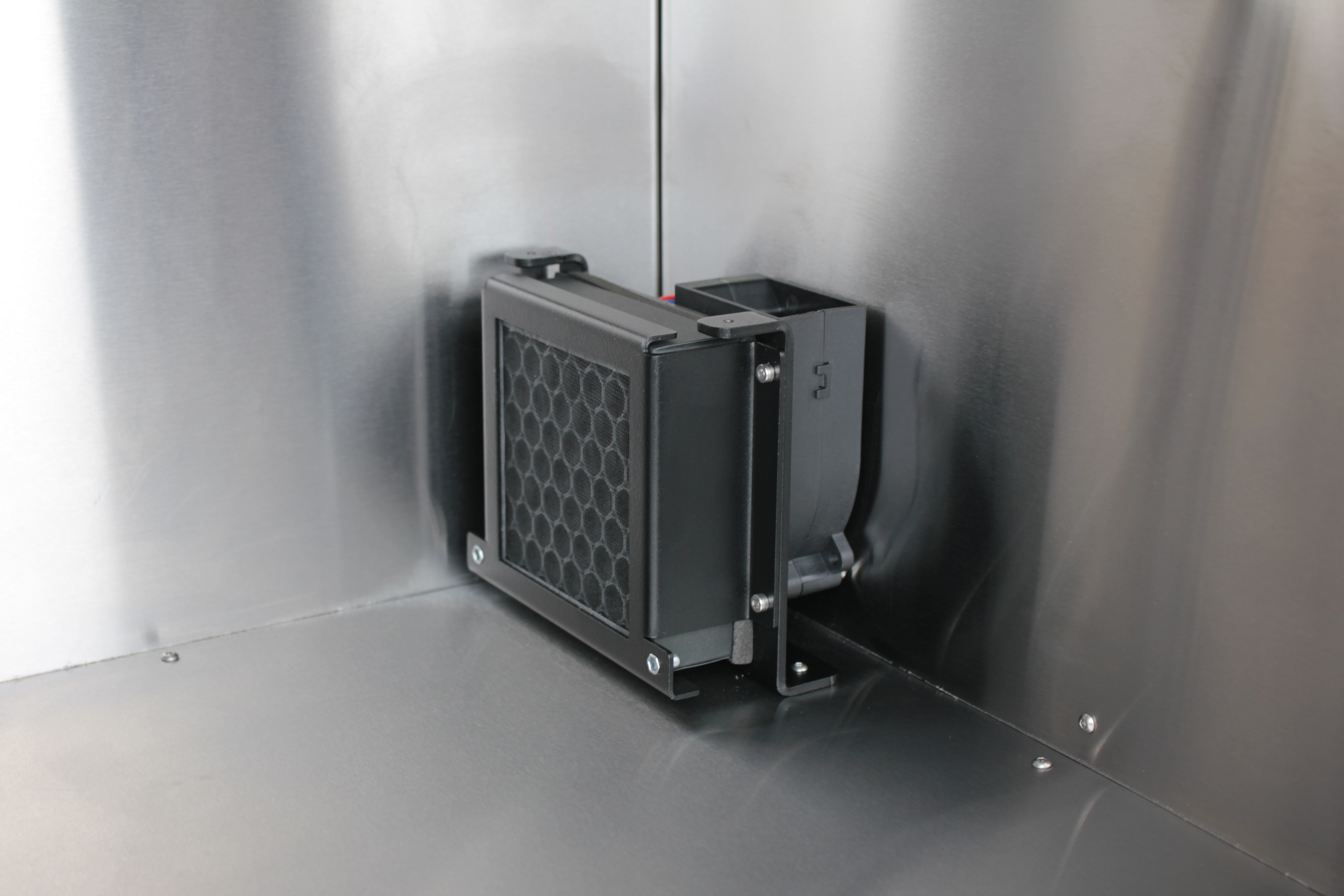
- Remove the stainless steel housing and set it aside.
Removing the HEPA Filter Bracket
-
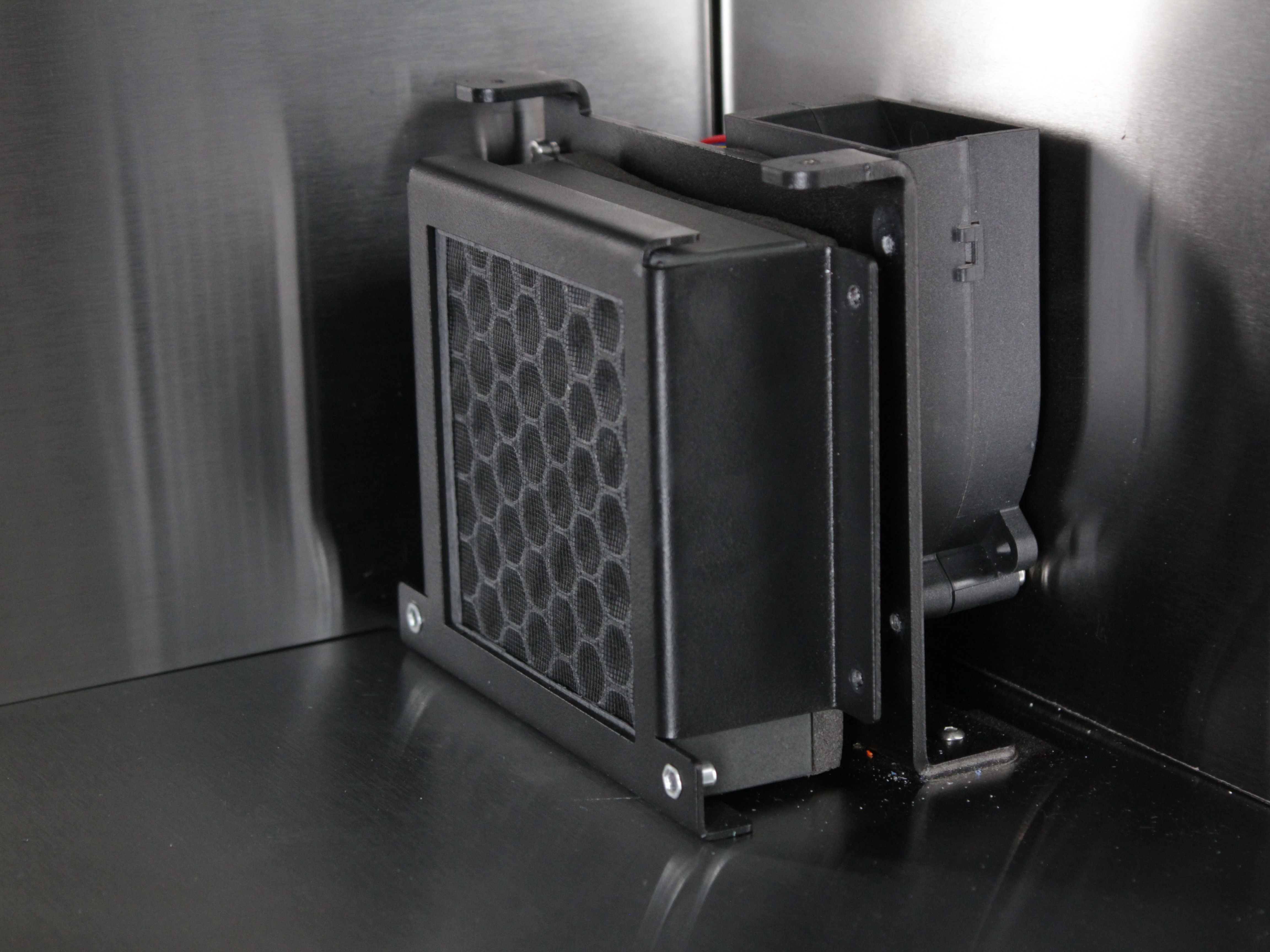
With the housing off, you can see the HEPA filter holder. This bracket holds the HEPA Filter and the HEPA Filter Fan - Rev 2 behind it. It attaches with hook-shaped tabs on the back side (closer to the rear wall) and two M3×6 socket head cap screws on the front side.
-
Unscrew the two M3×6 socket head cap screws on the front side of the bracket using a 2.5 mm hex screwdriver.
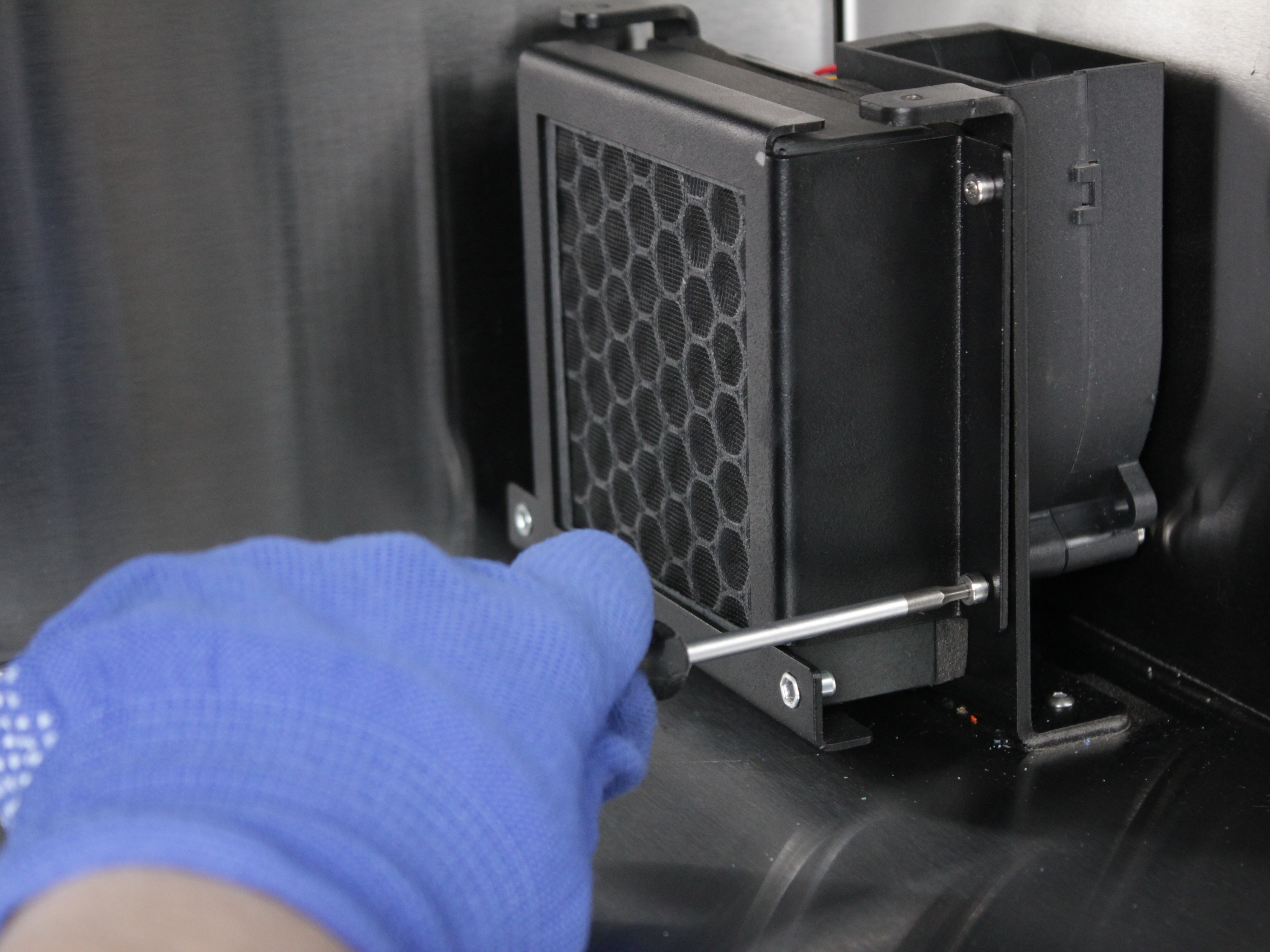
- Lift the bracket slightly to unhook the tabs from the rear mounting points, then pull the entire bracket out together with the HEPA filter.
Replacing the HEPA Filter
- Remove the old HEPA filter from the bracket. On older filters, there may be a separate gasket behind the filter – if present, you can discard it along with the old filter. New replacement filters come with the gasket already attached.
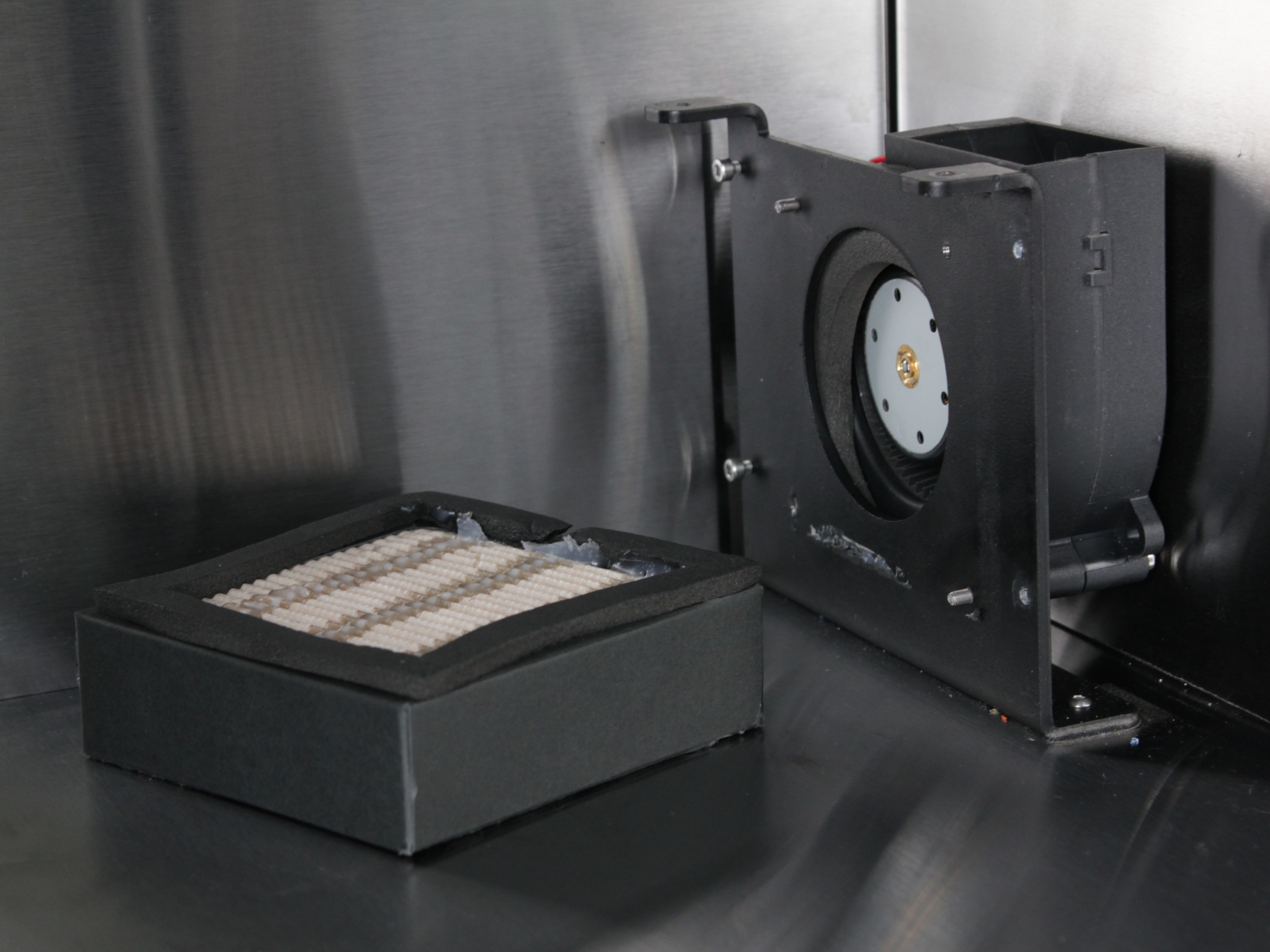
Notice how the white pleated fabric has changed color due to accumulated contaminants. This discoloration shows the filter has been actively removing particles and fumes from the chamber air – a clear sign it's time for replacement.
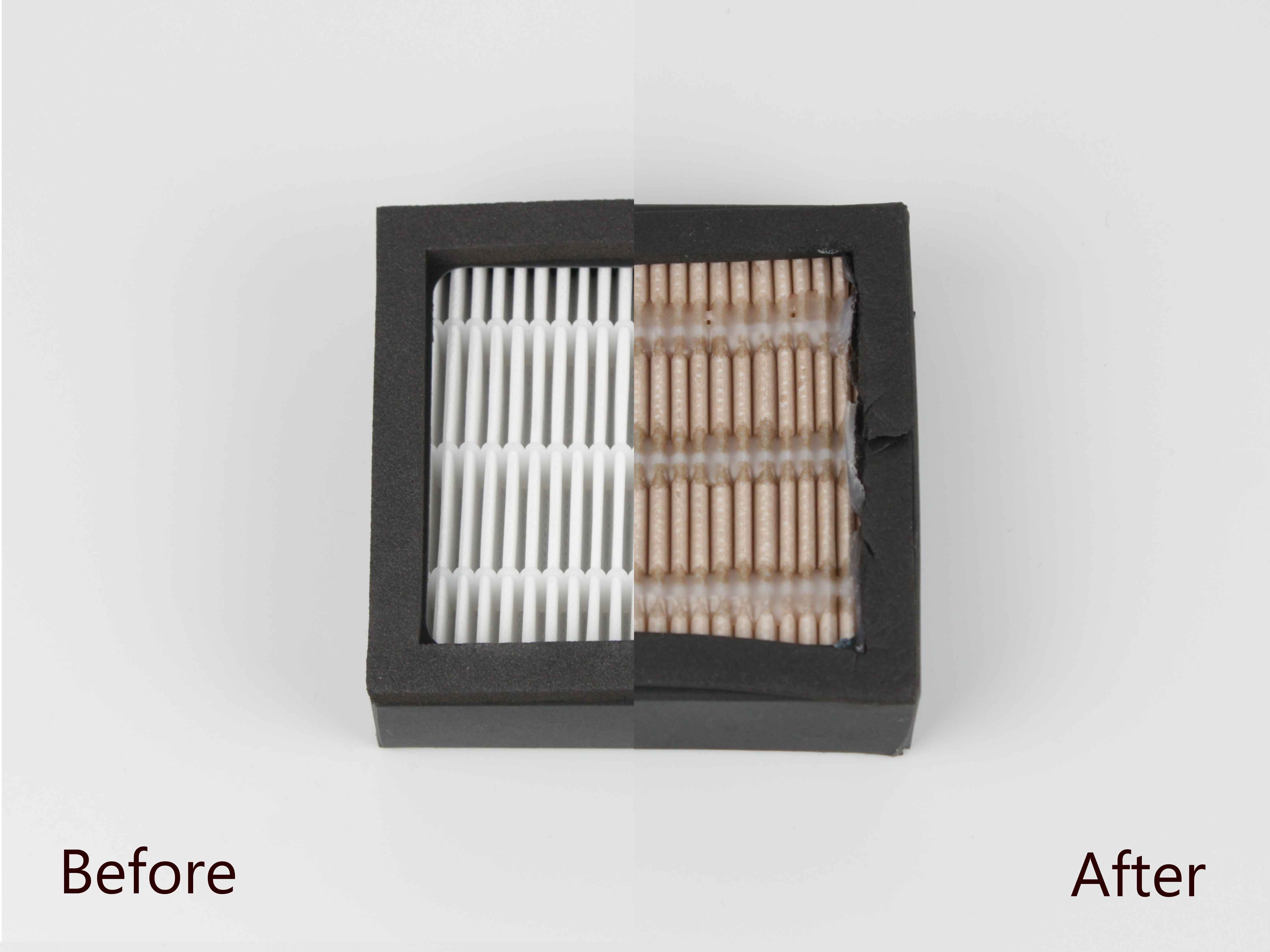
- Note the orientation of the old filter before discarding it. The HEPA filter has two distinct sides:
- Carbon honeycomb with a thin mesh – the intake side (faces the chamber).
- White pleated fabric – the outlet side (faces the fan).
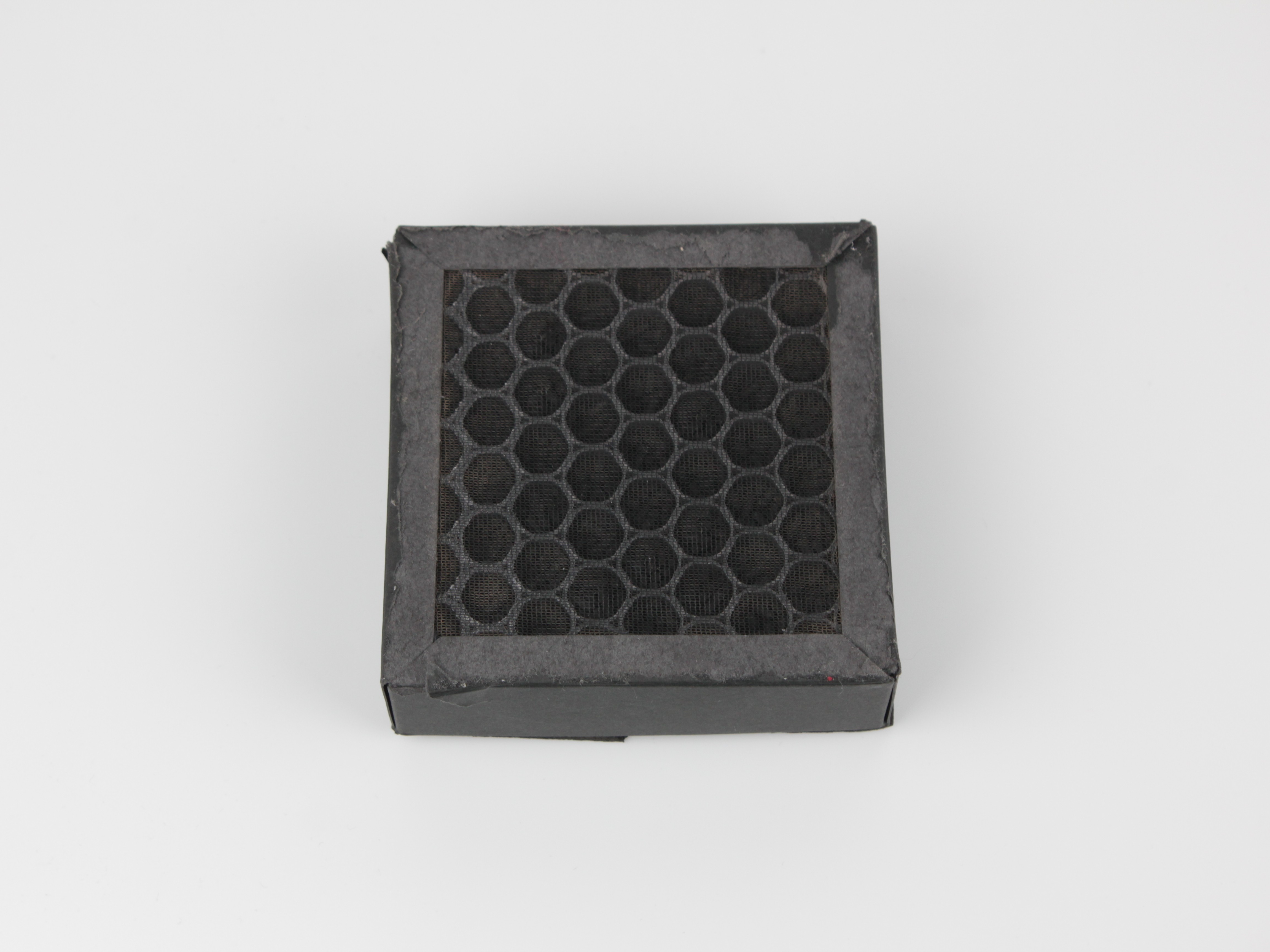
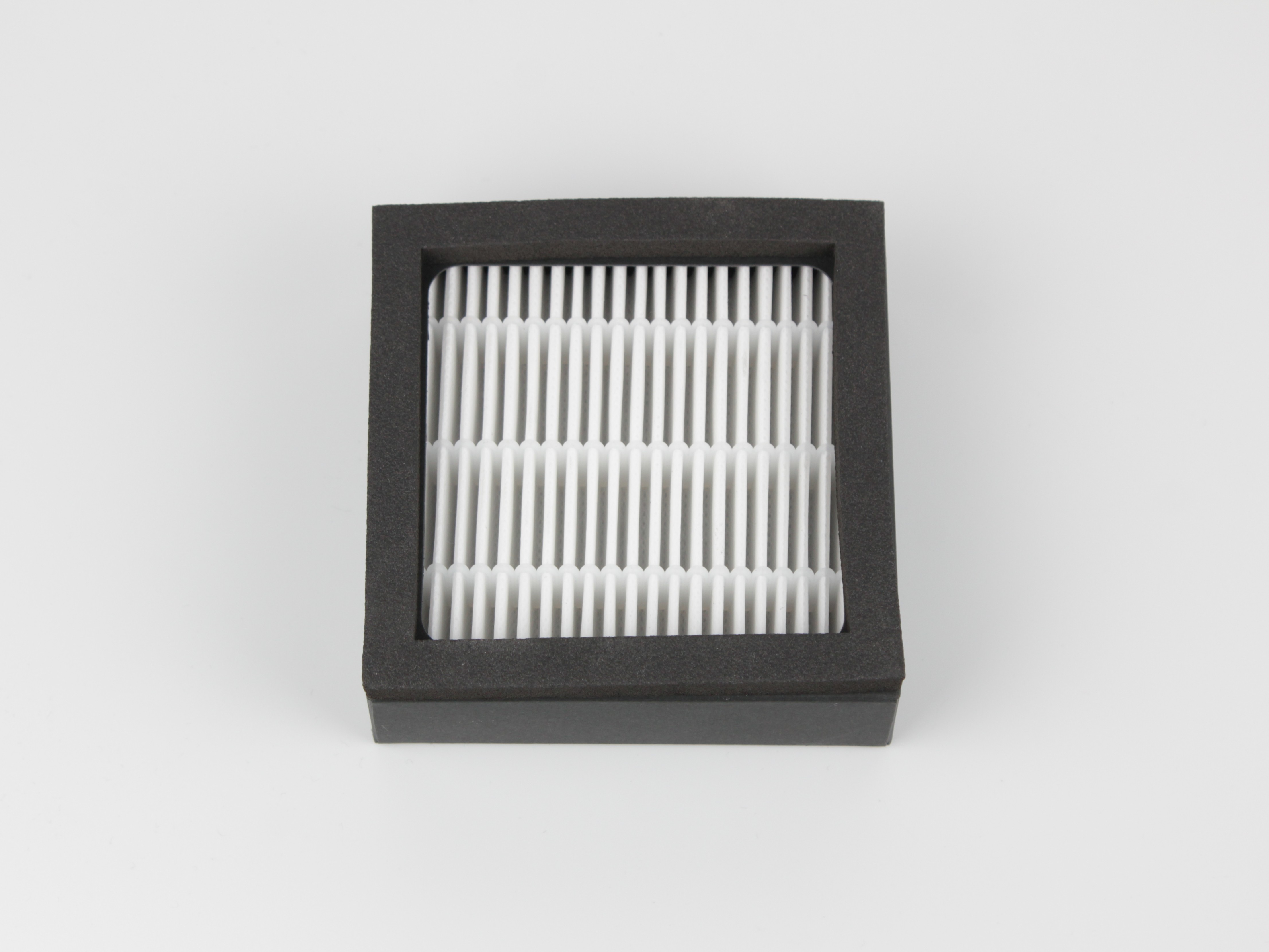
- Insert the new filter into the bracket in the same orientation as the old one – carbon honeycomb side facing outward (toward the chamber), white pleated side with the gasket facing the fan.
Reassembly
- Position the bracket back inside the enclosure. Hook the tabs on the back side onto the rear mounting points first, then pivot the front side into place.
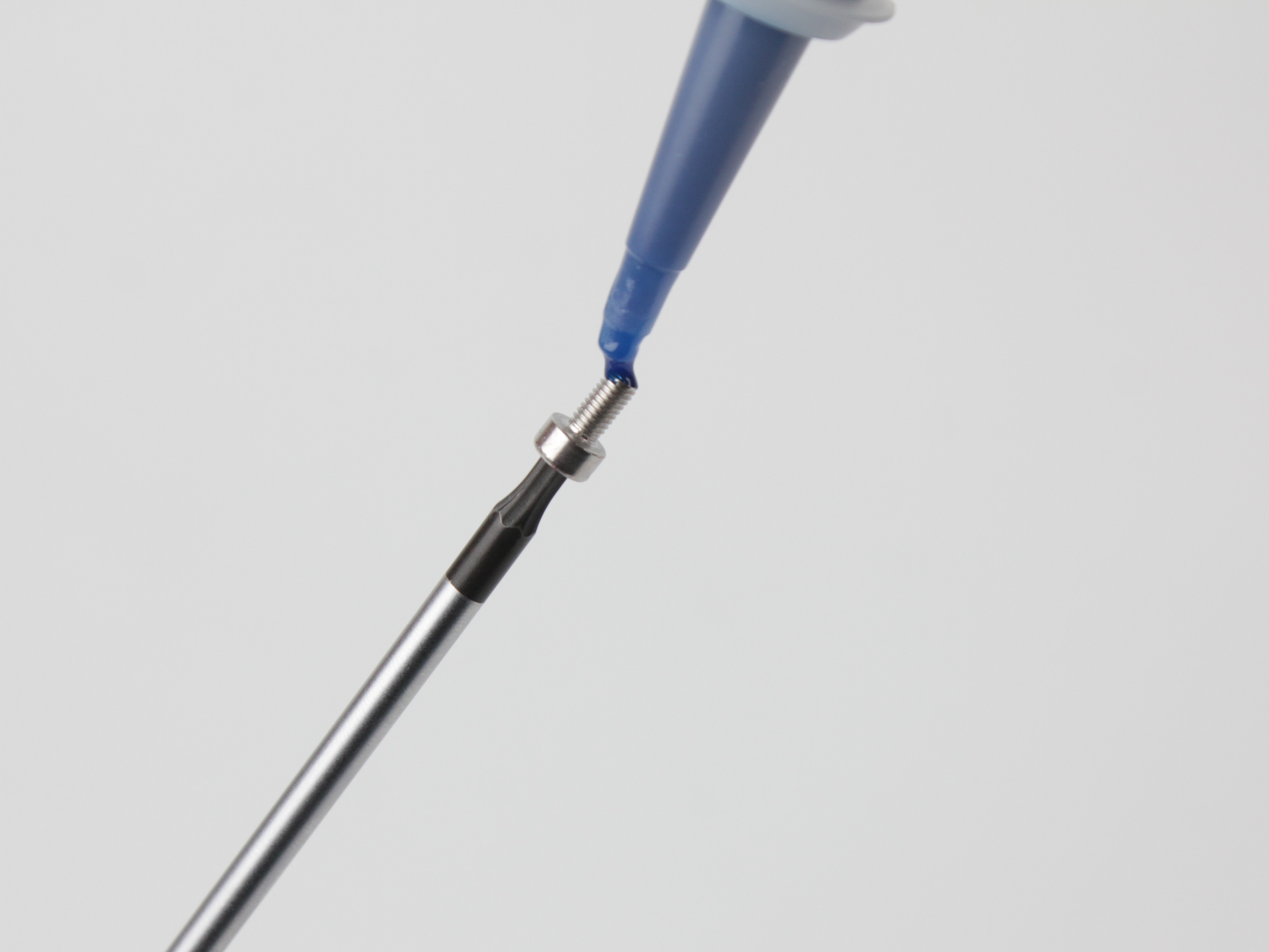
- Apply a small amount of threadlocker (Loctite 243) to the threads of the two M3×6 socket head cap screws.
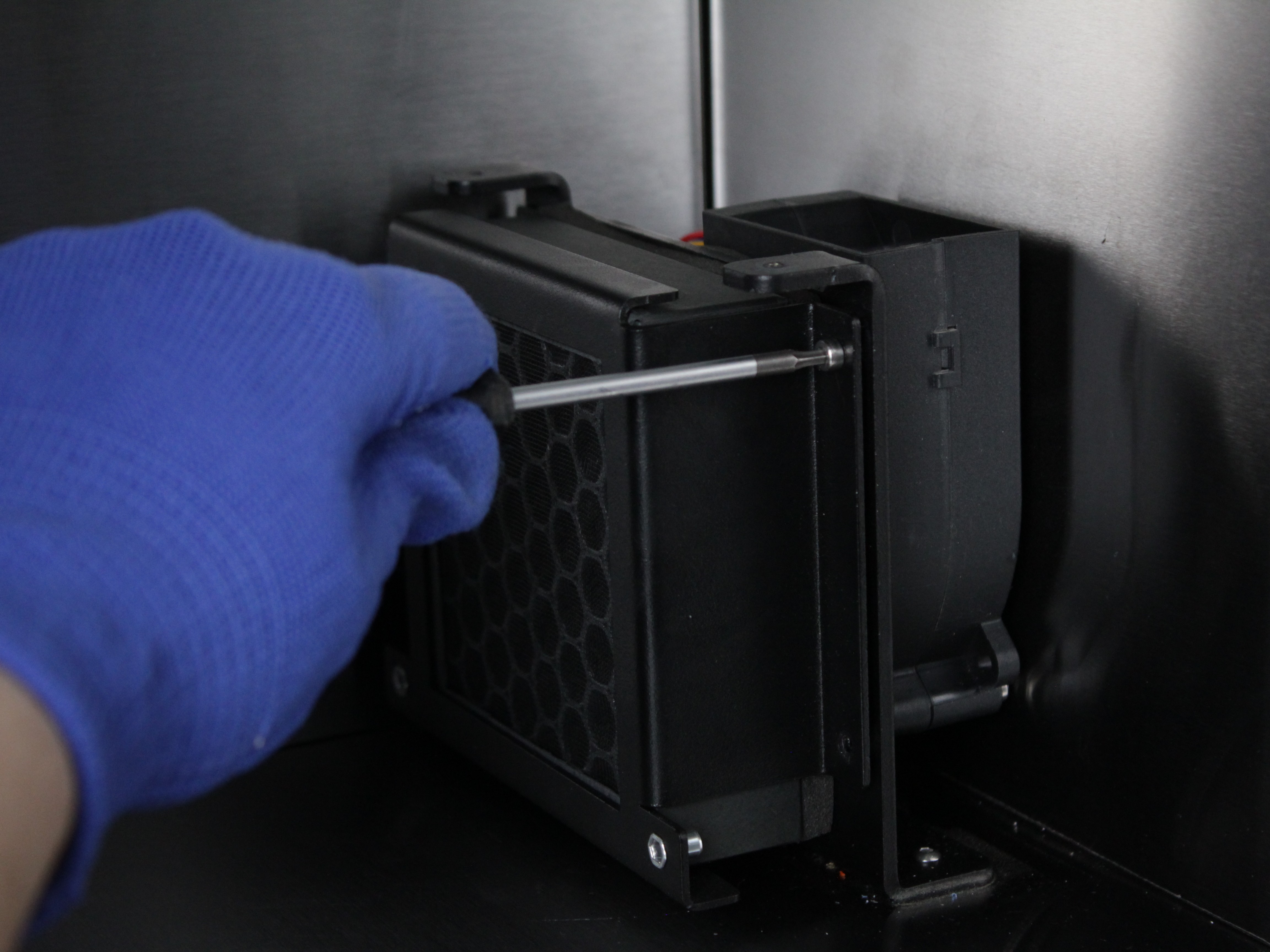
- Install and tighten the screws with the 2.5 mm hex screwdriver.
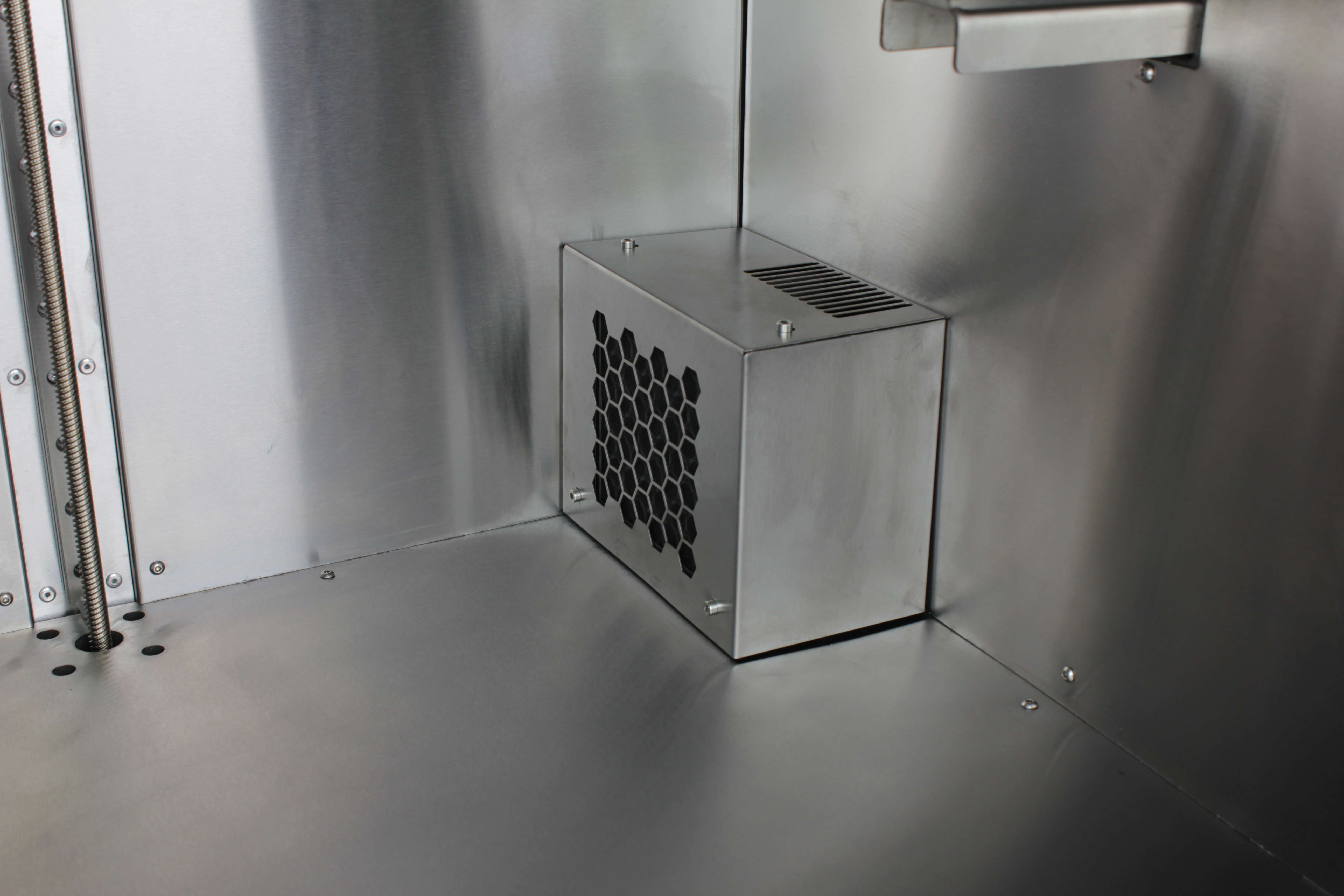
- Place the stainless steel housing back over the bracket.
-
Apply a small amount of threadlocker (Loctite 243) to the threads of the four M3×6 housing screws. Install and tighten all four with the 2 mm hex screwdriver.
-
Clean the work area and remove any debris from inside the enclosure before powering the printer back on.
FAQ
Troubleshooting
Support
If you could not find an answer here, reach out to our support team.