Lubrication
Grease Z-axis lead screws, X and Y rail carriages and extruder gears, including when stiffness means misalignment rather than dry parts, and the lube macro.
Regular and correct lubrication of your Vision Miner 22IDEX V4's moving components ensures smooth, quiet operation and extends service life. This guide covers lubrication of the Z-axis lead screws, X and Y-axis linear guides, and extruder gears.
Important: Distinguish between issues resolved by lubrication and those indicating mechanical misalignment. If the Z-axis motor binds or movement is difficult at the bottom of its travel, lubrication will not help – perform Z-axis Mechanical Alignment Calibration instead. If difficulty or noise occurs above the midpoint of travel, or if X/Y axes squeak, lubrication is appropriate.
Before you begin - safety and risk
Read the Safety - Before You Begin article to understand the hazards involved in working on the Vision Miner 22IDEX V4 – including electrical, thermal, mechanical, and chemical risks. All procedures in this wiki are provided as recommendations only. By choosing to follow any procedure, you do so at your own risk.
Tools and Materials
- High Temp Grease (Krytox recommended)
- Lint-free cloths or paper towels
- Gloves
- Syringe with fine needle (for extruder and X/Y linear guides; optional for Z-axis)
- Solvent-based cleaner (degreaser) - optional, for deep cleaning of the Z-axis lead screws
1. Clean Z-axis lead screws
Power off and unplug before cleaning
Unplug the printer from the mains. Moving parts can pinch fingers during manual cleaning.
- Place cloths or paper towels under and around the Z-axis lead screws to catch debris and old grease.
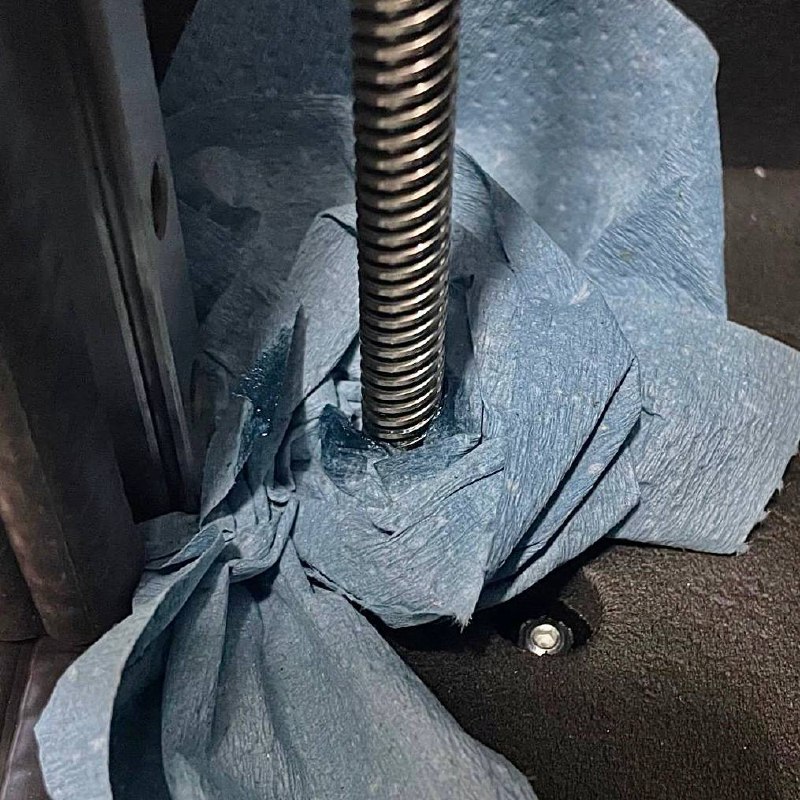
- Using a clean, lint-free cloth, thoroughly wipe down the entire length of both Z-axis lead screws, removing all old grease, dust, and grime. Repeat with clean cloths until they come away clean.
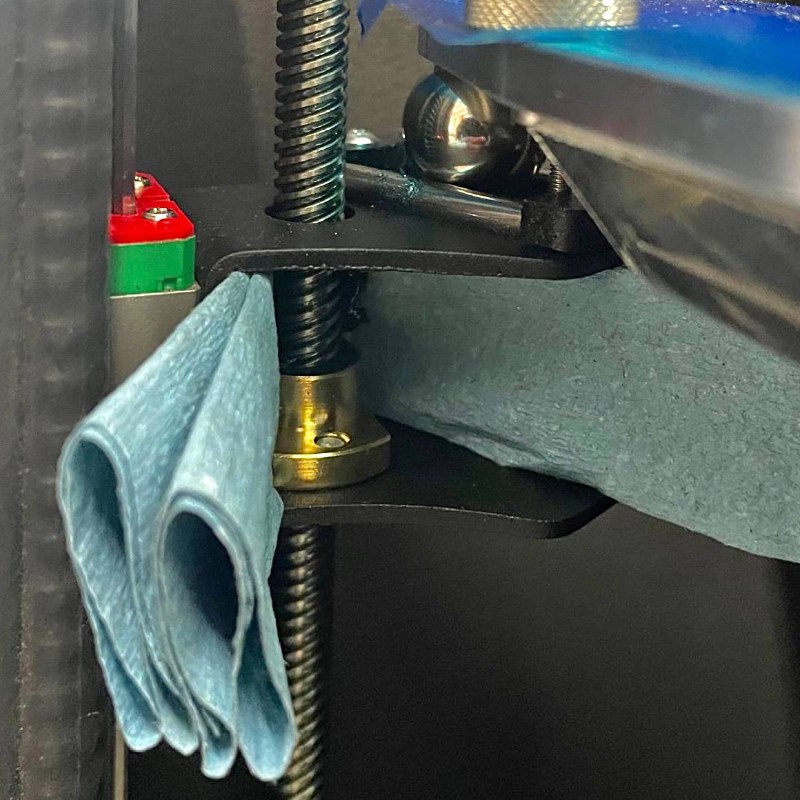
Deep cleaning with a solvent-based cleaner (optional)
If wiping alone does not remove the old grease - it has hardened, darkened, or mixed with debris deep in the threads - wash the lead screws with a solvent-based cleaner (degreaser):
- Keep the printer unplugged and place plenty of cloths under the screws - the cleaner will flush the old grease downward.
- Apply the cleaner along the screws and let it sit briefly to dissolve the old grease.
- Work the cleaner into the threads with a cloth, wiping from top to bottom. Repeat until the threads are washed completely clean and the cloth comes away spotless.
- Let the solvent evaporate fully before applying fresh grease - grease applied over solvent residue will not adhere properly.
Keep solvent off belts, plastics, and electronics
Apply the cleaner to the cloth or directly to the screw only. Do not let it drip or overspray onto belts, plastic parts, painted surfaces, or wiring. Use in a ventilated area and follow the safety instructions of your specific cleaner.
2. Apply grease to Z-axis lead screws
- Place clean cloths beneath the lead screws.
- Wearing gloves, apply a thin, even coat of high-temperature grease to the lower 5–10 cm of each lead screw. Use a syringe for precise application or apply carefully with your fingers. A small amount is sufficient.
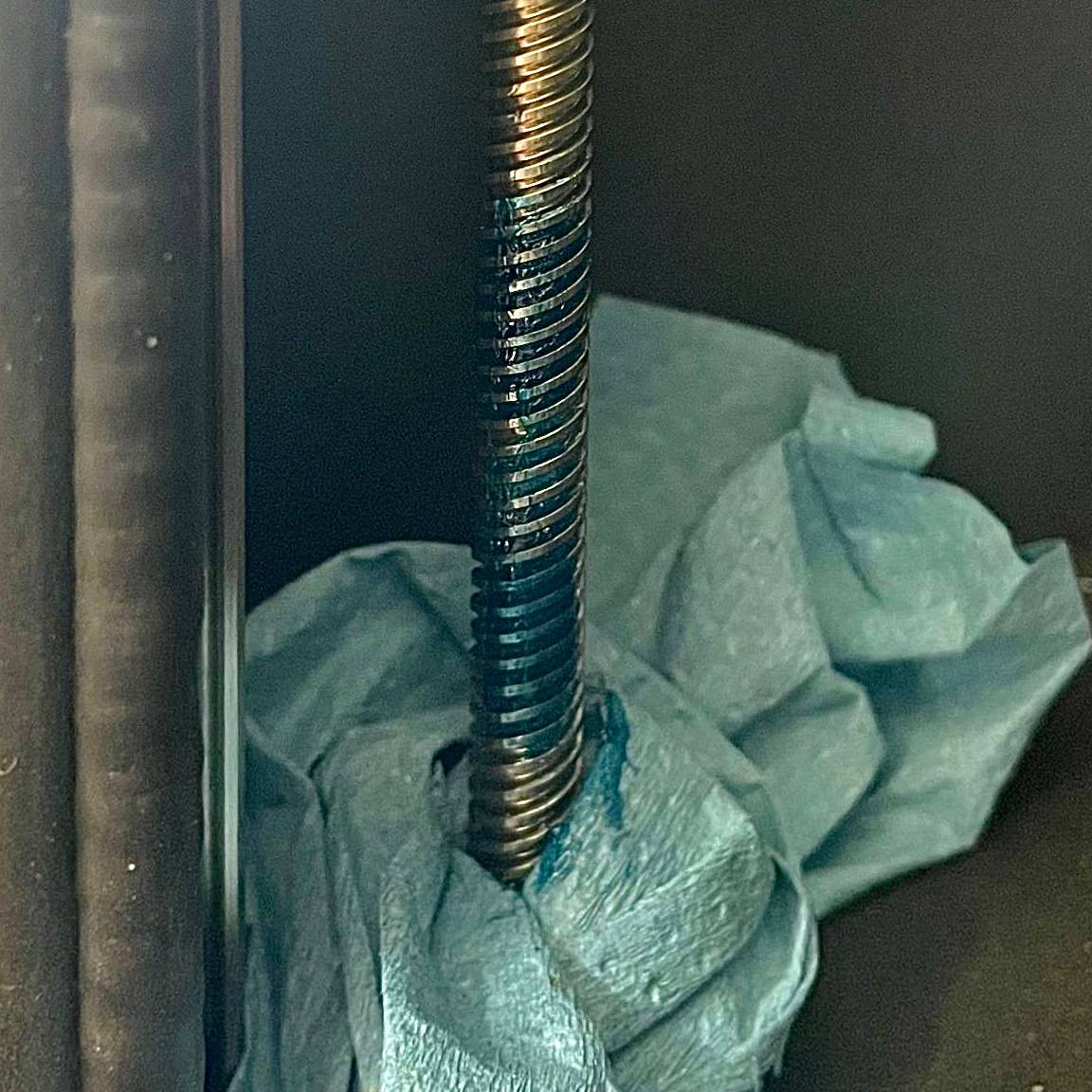
3. Distribute grease using macro
- Power on the printer.
- In the Web Interface, navigate to Macros > System > Calibration > QC > Tests.
- Select the TBL & Lube macro and run it. The first prompt offers the True Bed Leveling Test – click
Skip. When theDo you want to lubricate the Z-Axis?prompt appears, clickStart. - The printer will move the Z-axis down and prompt you to apply grease along all screws. After applying grease, confirm the prompt – the printer will move the Z-axis up and down to distribute the grease along the screws and nuts.
To stop the macro early
Press and hold one of the physical XU-axis endstop switches until movement stops, or restart the printer.
- After distributing the grease, wipe off any excess that accumulated at the ends of the lead screws or on the nuts with a clean cloth.
4. Clean X and Y-axis linear guides
Power off before cleaning rails
Unplug the printer. Moving carriages manually with power on can damage the printer.
- Using a clean, lint-free cloth, thoroughly wipe down the exposed surfaces of the X-axis and Y-axis linear rails where the bearing carriages travel. Remove all old lubricant, dust, and debris.
5. Lubricate X and Y-axis carriages
- Prepare a syringe with a small amount of high-temperature grease, fitted with a fine needle.
- Locate the small lubrication hole on the sides of the X-axis carriage and Y-axis carriages.
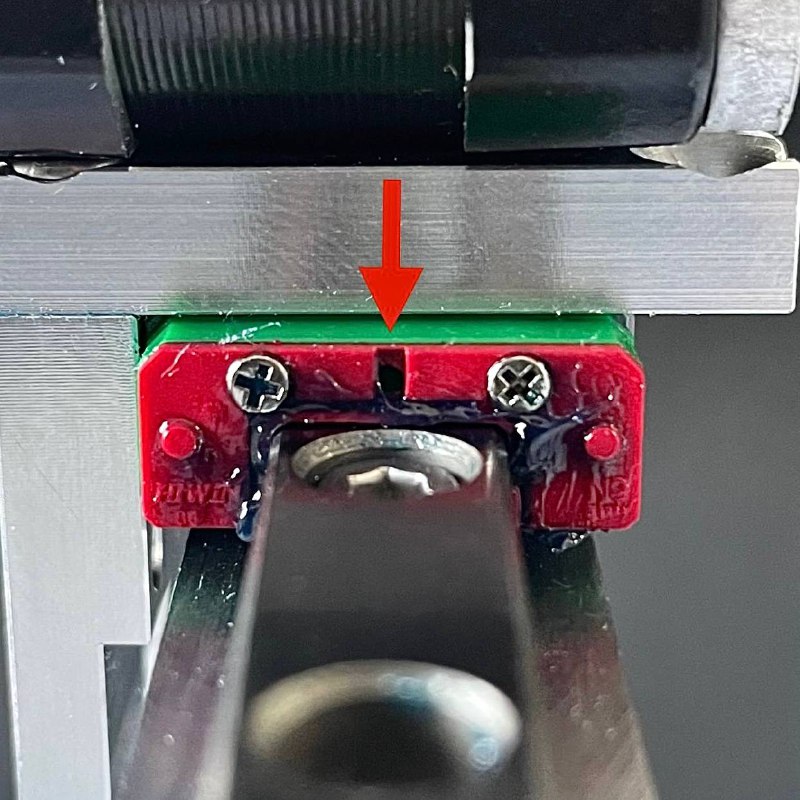
- Insert the tip of the syringe needle approximately halfway into the lubrication hole on one side of a carriage.
- Dispense a small amount of grease.
- Repeat on the other side of the same carriage.
- Repeat for all X and Y carriages that require lubrication.
- Manually and gently move the X-carriage and Y-carriage back and forth several times along their full range of motion to distribute the grease evenly within the internal bearings.
- Wipe off any excess grease that emerged from the carriages or lubrication ports with a clean cloth.
Alternative method without syringe
Apply a very thin film of grease directly to the cleaned rails, move carriages to distribute, then wipe off excess.
6. Lubricate extruder gears
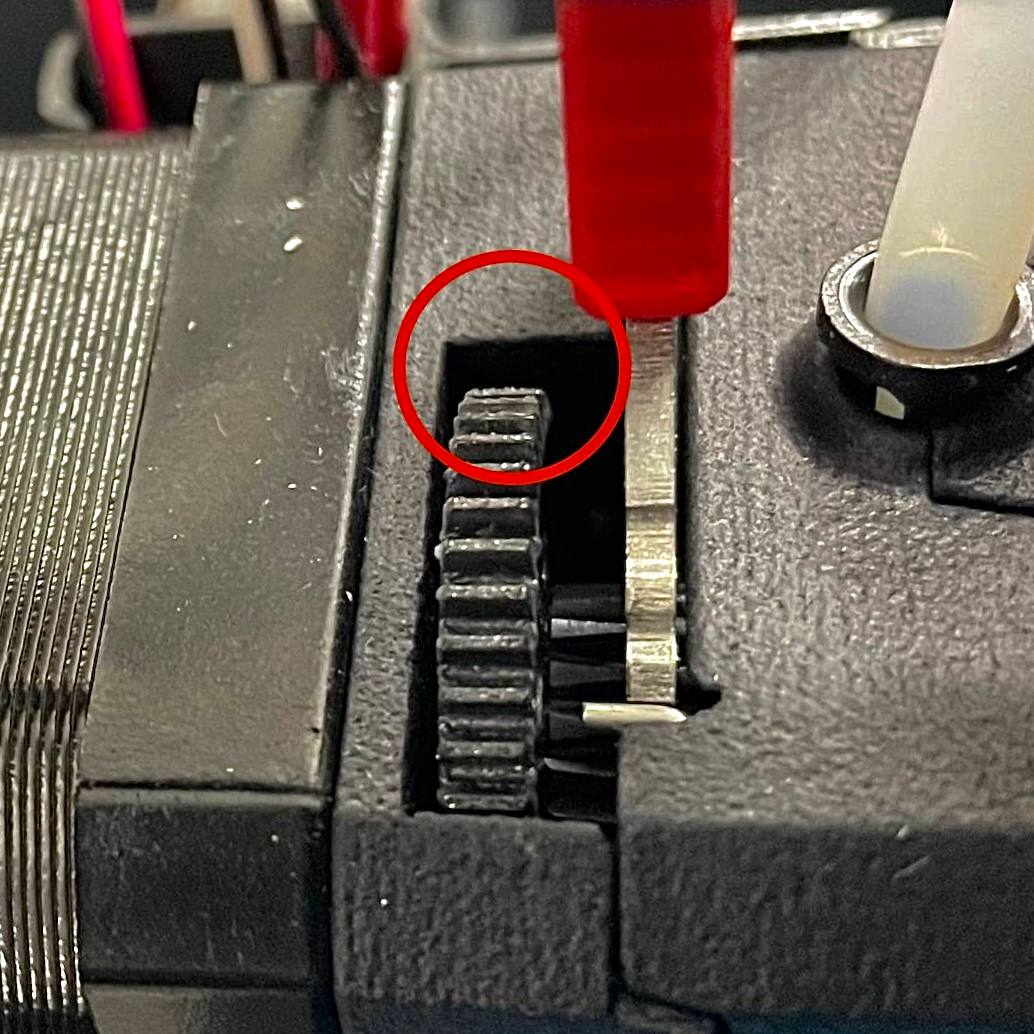
- Gain access to the extruder gears (T0 or T1).
- Identify the main drive gear from above.
- Using a syringe or a small, clean applicator like a toothpick, apply a very small amount of high-temperature grease to the teeth on the right side of the upper gear.
Hot nozzle may prevent extrusion
If the hotend is cold and extrusion is blocked, enable cold extrusion: open the G-code console, send M302 P1, then press Enter. After lubrication, disable cold extrusion with M302 P0.
- In the Web Interface, navigate to the Dashboard tab.
- Select the appropriate toolhead (T0 or T1).
- Initiate filament extrusion at a slow speed (e.g., 3 mm/s) by pressing Extrude. The gears will rotate, distributing the grease.
- Wipe off any excess grease.
FAQ
Support
If you could not find an answer here, reach out to our support team.